
Frames Data Integration — Setup, Import, and Updating Frames
Overview
Video: (link coming)
The FramesData integration lets you pull frame product data (manufacturer, brand, collection, style details, and pricing) directly from FramesData into the system, instead of creating frame products manually. This article covers:
- One-time system setup
- Importing new frames
- Updating an existing frame's info from FramesData
- Adding a frame to a glasses order (search by model with photos, or scan the UPC)
- Common messages and what they mean
1. One-Time Setup
Before you can use FramesData import, the integration needs to be turned on and configured for your company.
Steps:
- Go to Settings > Inventory.
- Scroll to the FramesData section. [Screenshot: FramesData settings section]
- Check Enable FramesData Integration.
- Fill in the following fields (provided by FramesData when your account was set up):
- FramesData Username — your FramesData account name
- FramesData Ship Zipcode
- FramesData Bill Zipcode
- FramesData Locations
-
Click Save.
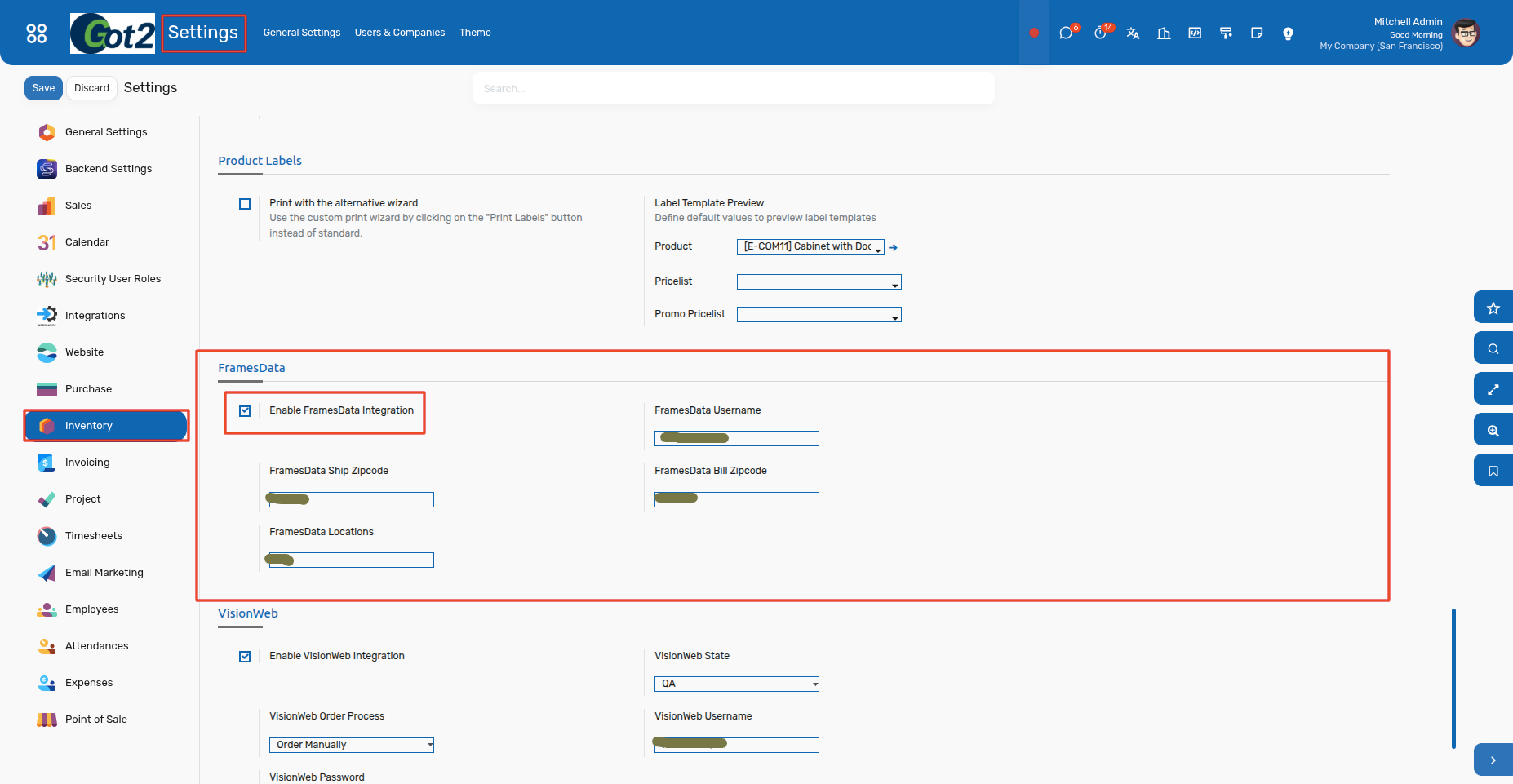
Note: If FramesData integration is turned off, the "FramesData import" button will not appear anywhere in the system — this is expected for companies that don't use FramesData.
Markup Formula (optional, but recommended)
By default, if no pricing rule is set up, imported frames will use their Wholesale price as the retail price. To have the system automatically calculate a proper retail price with a markup, set up rules here:
-
Go to Inventory > Configuration > Markup Formula.
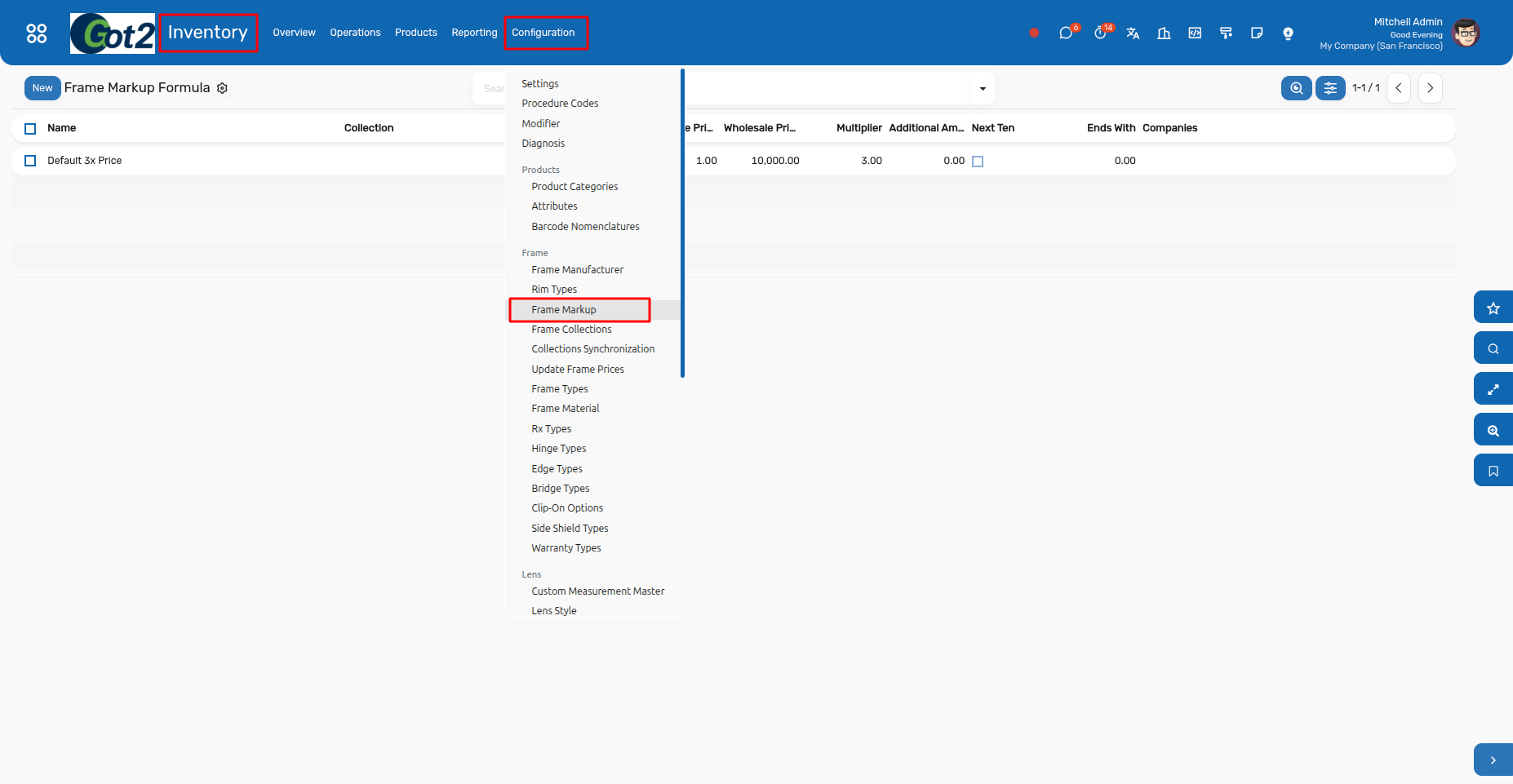
- Click New and fill in:
- Collection — leave blank to apply this rule to any collection that doesn't have a more specific rule, or select specific collections for a special markup
- Wholesale Price Min / Max — the wholesale price range this rule applies to
- Multiplier — e.g. 3x to mark up wholesale price by 3x
- Additional Amount — a flat amount added on top of the multiplier calculation
- Ends With / Next Ten — optional price-rounding rules (e.g. round retail prices to end in .99, or round up to the nearest 10)
-
Click Save.
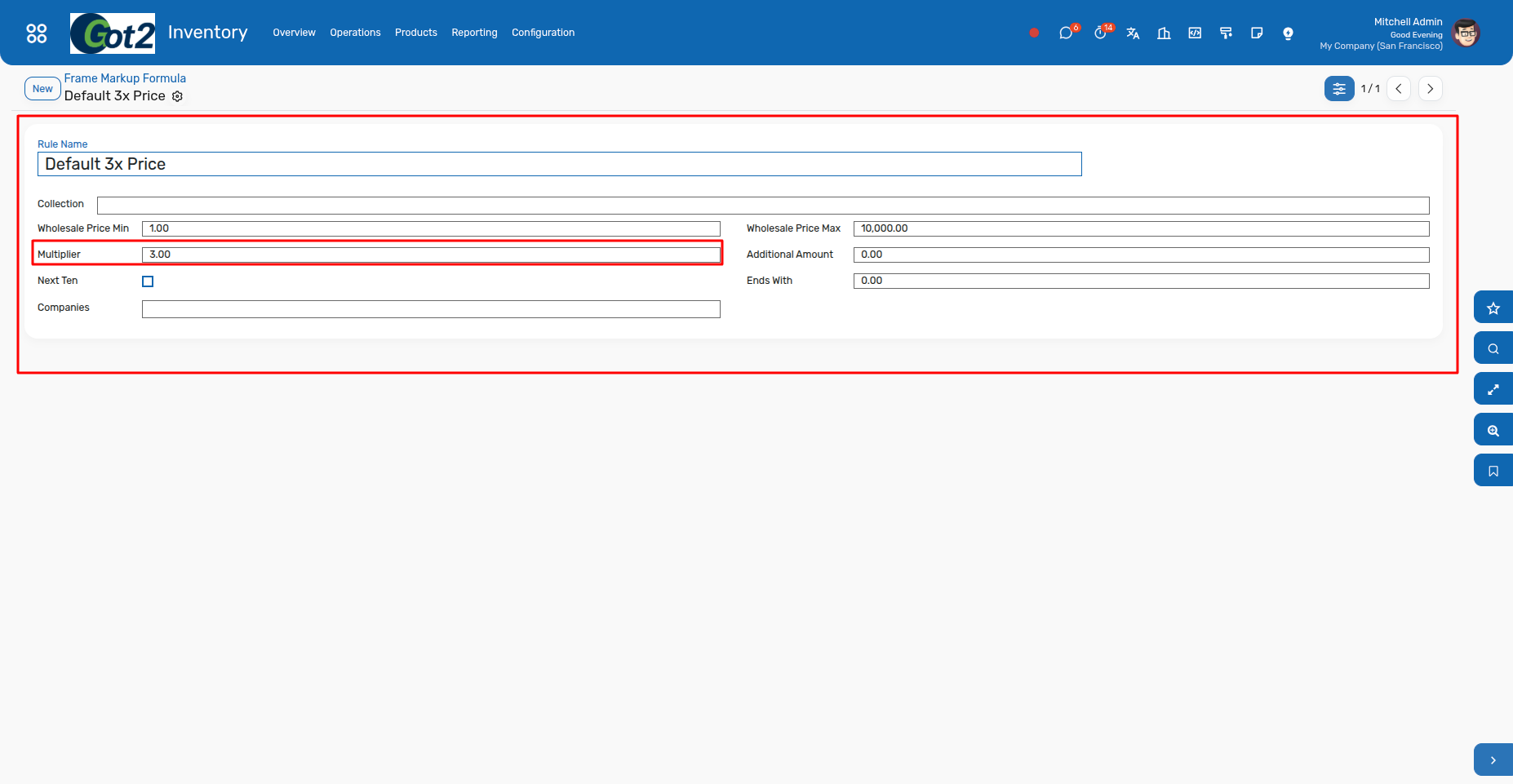
Without at least one rule here, all imported frames will simply use their wholesale price as the retail price.
Example
Let's say a frame's Wholesale price from FramesData is $45.54, and you've created a rule with:
- Wholesale Price Min: 1.00
- Wholesale Price Max: 10,000.00
- Multiplier: 3
- Additional Amount: 0.00
Since $45.54 falls between the Min and Max, this rule applies. The system calculates:
Retail Price = (Wholesale × Multiplier) + Additional Amount Retail Price = (45.54 × 3) + 0.00 Retail Price = $136.62
That $136.62 is what gets set as the product's retail/sales price.
If Additional Amount is also set (say, $5.00 instead of 0), it's added on top of the multiplied price:
(45.54 × 3) + 5.00 = $141.62
If Ends With or Next Ten is turned on, the calculated price is rounded afterward — e.g. rounding up to the nearest 10 would turn $136.62 into $140.00.

Tip: If a product's wholesale price doesn't fall within any rule's Min/Max range (and there's no blank-collection catch-all rule covering it), no markup is applied — the retail price will simply match the wholesale price.
2. Importing New Frames
Step 1 — Open the Frames list
- Go to Inventory > Products > Frames.
-
Click the FramesData import button at the top left. [Screenshot: Frames list with FramesData import button highlighted]
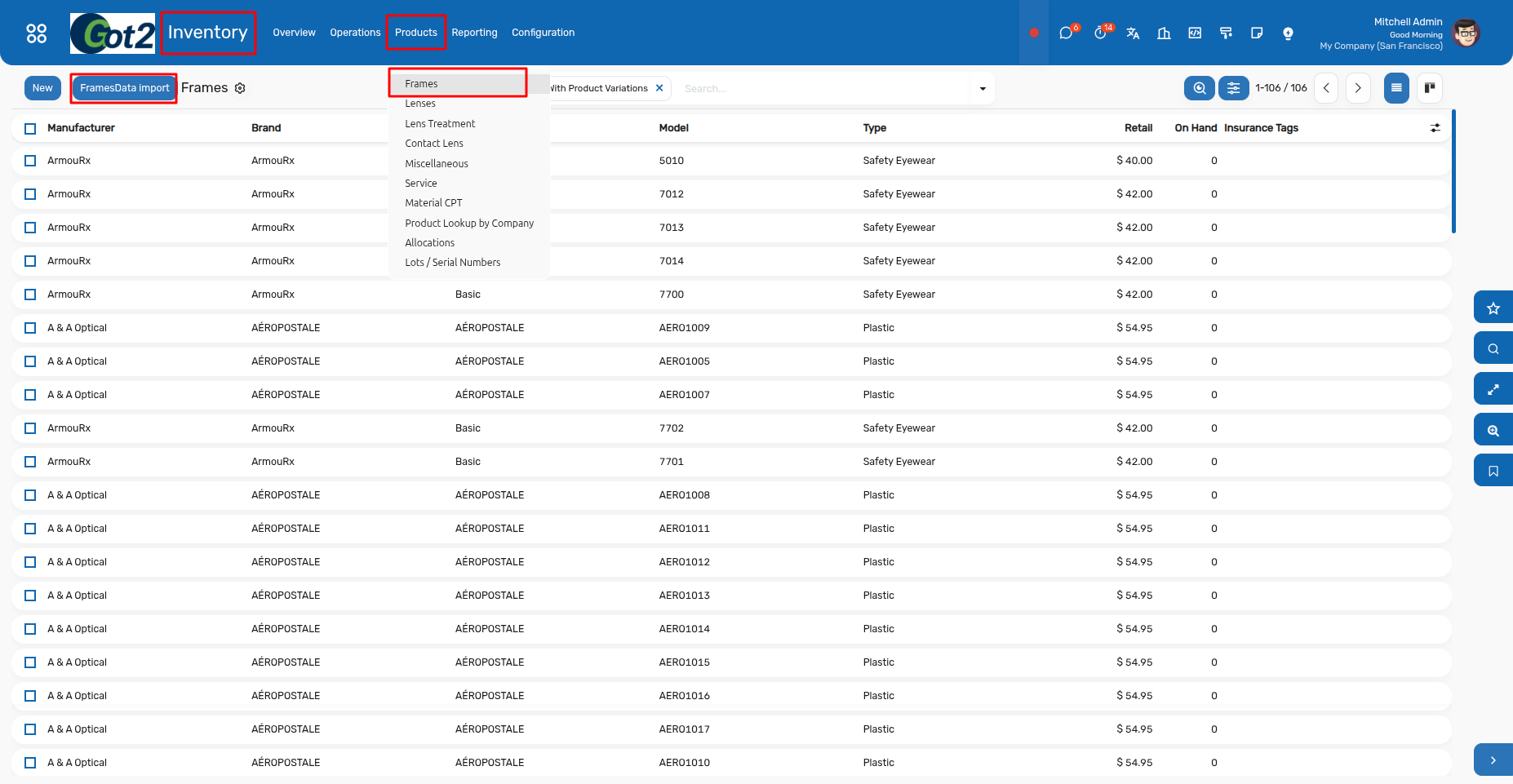
If you don't see this button, FramesData Integration hasn't been enabled for your company — see Section 1.
Step 2 — Browse manufacturers and collections
A list of all Manufacturers and Collections available from FramesData will load. This can take a few seconds. [Screenshot: Frames Collection Data list]
- Use the checkboxes to select one or more collections you want to import.
- Click Import Frames at the top of the list.
Step 3 — Choose a vendor
- In the popup, select the Vendor — this should be the real supplier you purchase these frames from (not a demo/test contact). [Screenshot: Vendor selection popup]
-
Click Import Frames to confirm.
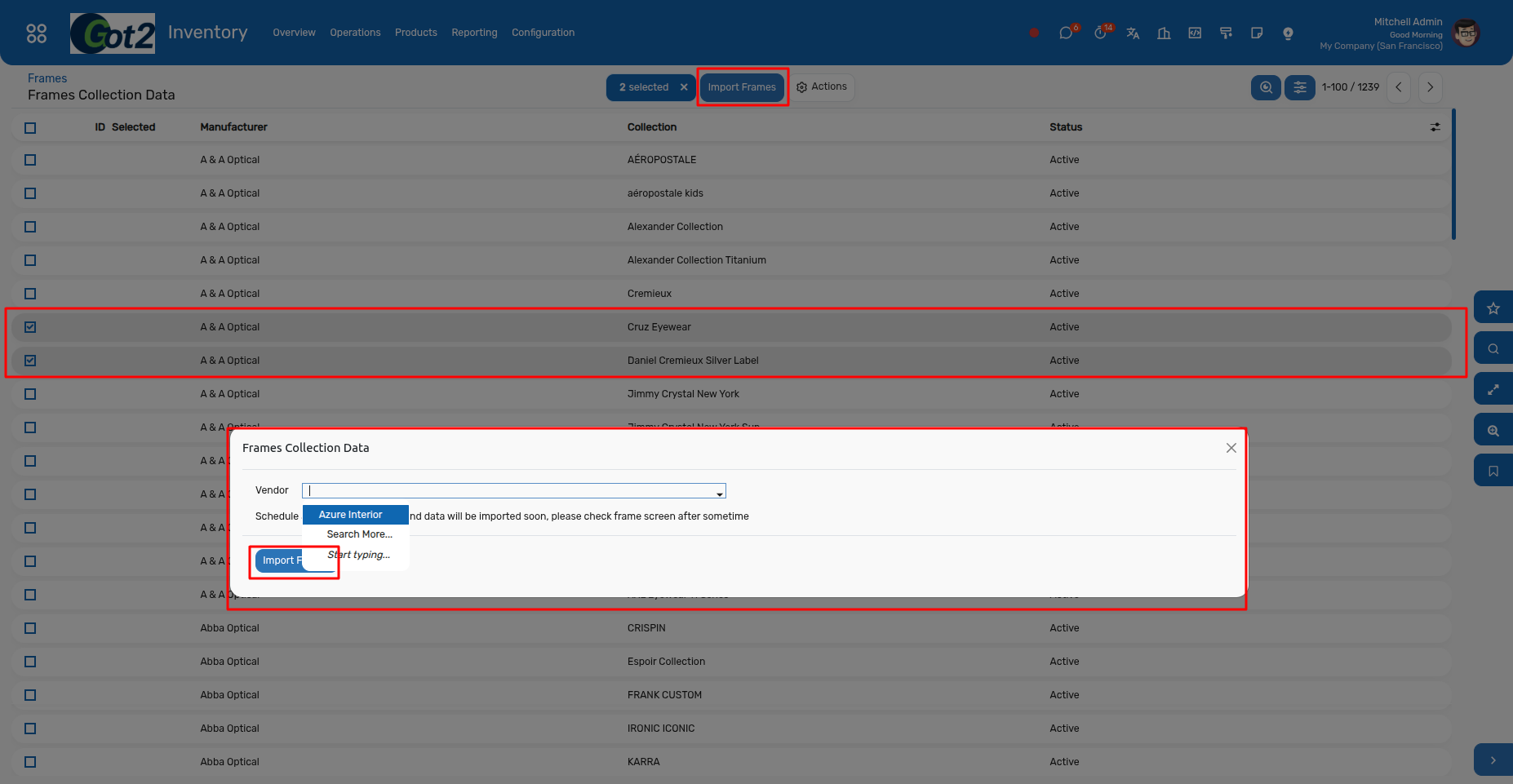
The Vendor list here is simply your own Contacts marked as a Vendor — it has nothing to do with FramesData itself. It's used to record cost/pricing information against that supplier once the products are created.
Step 4 — Wait for the 30 to 50 minute import to complete
Frames are not created instantly. After you click Import Frames:
- The system queues the selected collection(s) for import.
- A background process picks up the queue and creates the actual frame products — this normally starts within about a minute, and each collection can take a few minutes to fully process depending on its size.
- Once done, the new frame products will appear in Inventory > Products > Frames automatically — no further action needed.
What gets imported
For each frame style, the system creates a product with:
- Manufacturer, Brand, Collection, Model
- Material, Shape, Gender, Age, Frame Type
- Rim, Edge Type, Bridge, Hinge, Rx, Clip-On Option, Side Shields, Warranty
- Retail and Wholesale pricing
-
Color variants (where available from FramesData)
Frame photos: frames come with their photos when FramesData has them. Open a frame and go to the Variations tab to see each color with its own photo.

-
3. Updating an Existing Frame's Info
If FramesData updates a style's information (price change, discontinued status, updated attributes, etc.), you can refresh a single product without re-importing the whole collection.
Steps:
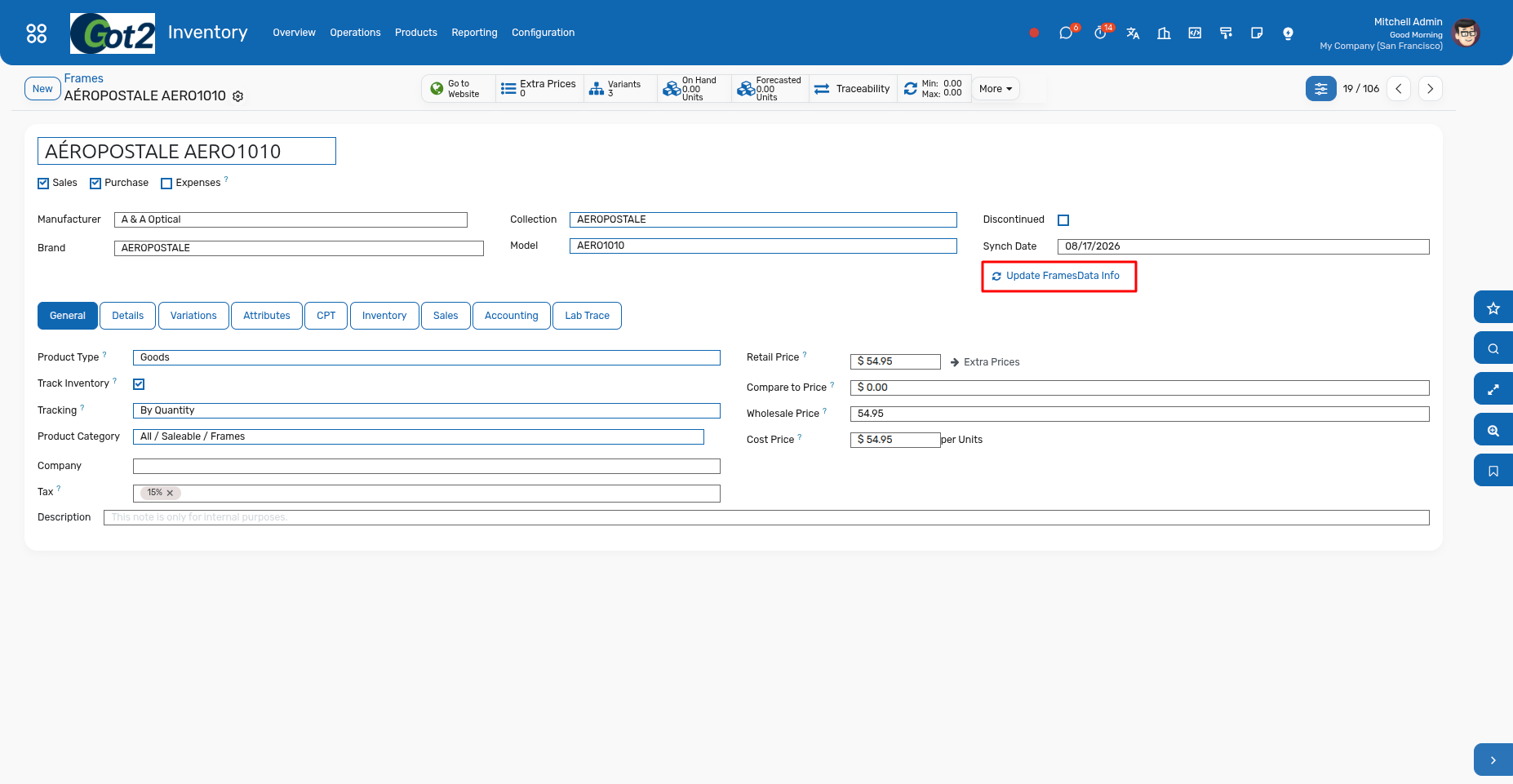
- Open the frame product (Inventory > Products > Frames, click into a product).
-
Near the Synch Date field, click Update FramesData Info. [Screenshot: Update FramesData Info button on the product form]
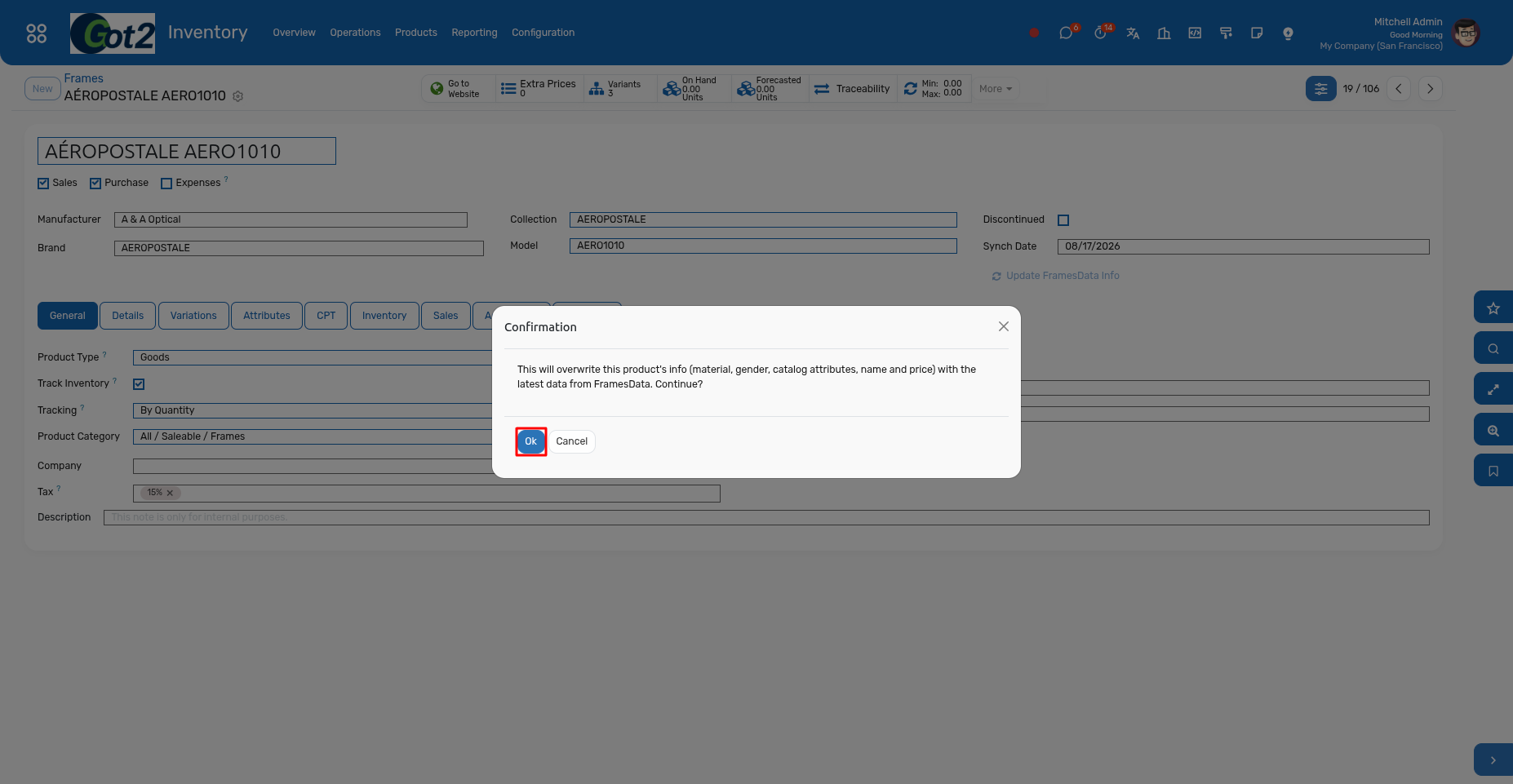
- A confirmation popup appears, warning that this will overwrite the product's material, gender, catalog attributes, name, and price with the latest data from FramesData.
-
Click Ok/Yes to confirm.
-
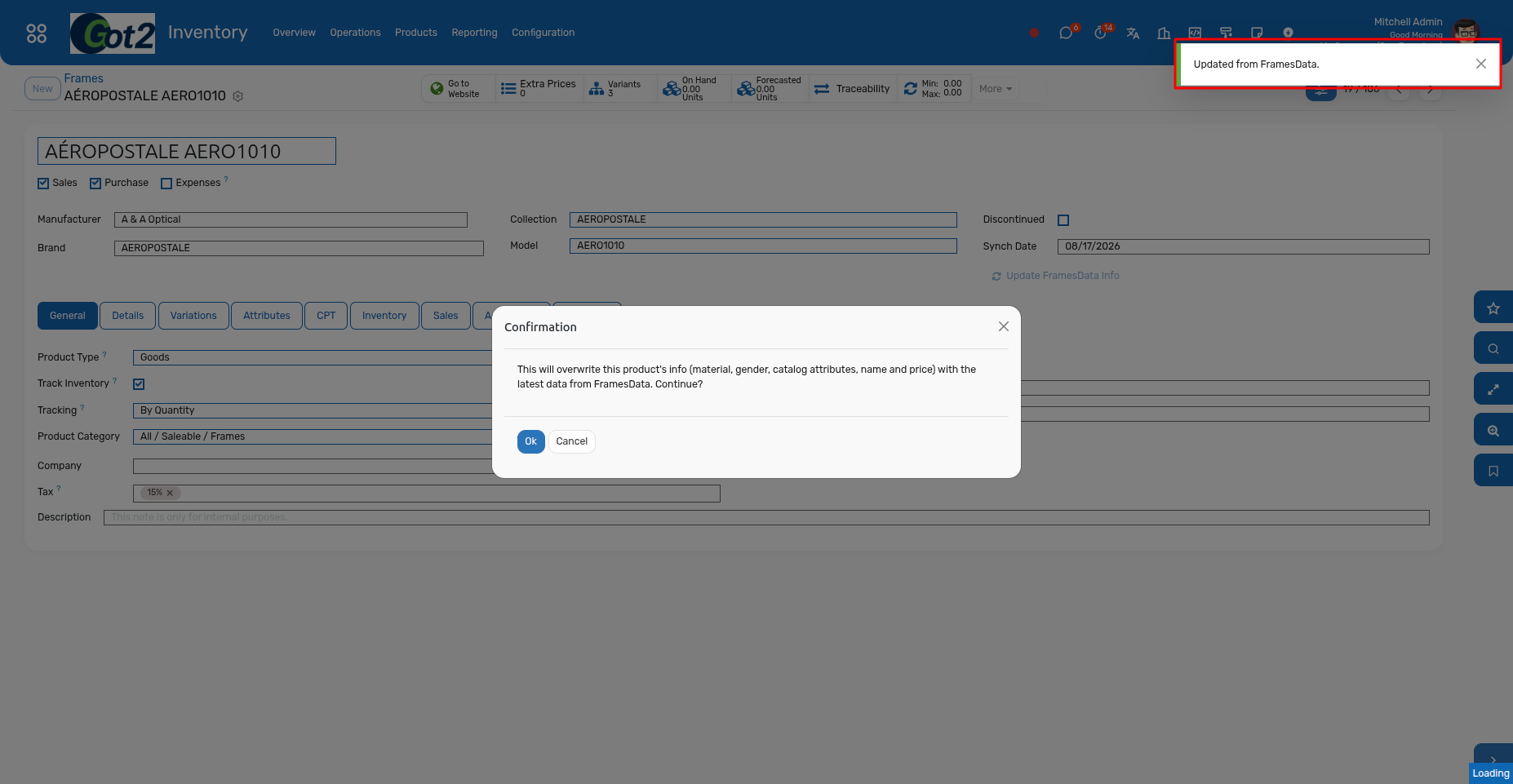
A success message will appear once complete, and the product's fields will refresh with the latest FramesData info.
-
Note: This button only appears on products that were originally created via FramesData import. It updates the main product info only — it does not currently update variant-level details like color/size options.
4. Adding a Frame to a Glasses Order
Open or create a glasses order (Sales, Type: Glasses). In the Frame section there are two ways to add a frame.
Search by model, brand or collection: click Frame and type the model (for example RB0298S), brand or collection. The results show each frame with its photo, so you can pick the color by its photo. Click Select and the frame fills in on the order.

Scan the UPC: if you have the frame's UPC barcode, scan it straight into the Frame UPC field on the order. No pop-up is needed; the frame details fill in.
Frame not in your inventory yet? Scanned into the Frame UPC field, Got2 adds it from opticalCatalog. For the FramesData match, click Frame, enter the UPC there and click Import This Frame
Good to know: set up a Markup Formula rule (section 1) before you import or click Update Frame Prices. Update Frame Prices reprices every frame in your database at once; without a rule, retail prices are set equal to wholesale.
5. Common Messages
| Message | What it means | What to do |
|---|---|---|
| "FramesData credentials are not configured" | Account/Zipcode/Locations fields in Settings > Inventory > FramesData are empty. | Fill them in and save (Section 1). |
| Retail price looks low / equal to wholesale price | No Markup Formula rule matches this product yet. | Set up rules under Configuration > Markup Formula (Section 1). |
| New frames don't appear right away after import | This is expected — import runs in the background, not instantly. | Wait a few minutes and refresh the Frames list. |