
How to Create Contact Lens Order
We can create three types of Contact Lens Sale Orders in the system:
- Contacts Sale Order
- Hard Contact Lens Sale Order
- Scleral Sale Order
There are two ways to create a Contact Lens Sale Order:
1) From Patients Screen
2) From Sale Order Screen
1) From the Patients Screen
-
Contacts lens Sale Order
Navigate to the Patient module and open the patient for whom you want to create the sale order.

Navigate to RX > Vision > Contacts > Contacts tab. Here, you can add a new RX or use an existing RX to create the sale order. Simply click on this button to create the sale order for the selected RX.

You will be redirected to the Sale Order screen, where all values will be automatically populated.
After that, click the Update button to confirm the details.

Below, you can see the Sale Order Line created with the products and their respective quantities.

-
Hard Contact Lens Sale Order
Navigate to RX > Vision > Contacts> Hard tab. Here, you can add a new RX or use an existing RX to create the sale order. Simply click on this button to create the sale order for the selected RX.

You will be redirected to the Sale Order screen, where all values will be automatically populated.
After that, click the Update button to confirm the details.

Below, you can see the Sale Order Line created with the products and their respective quantities.

-
Scleral Contact Lens Sale Order
Navigate to RX > Vision > Contacts > Scleral tab. Here, you can add a new RX or use an existing RX to create the sale order. Simply click on this button to create the sale order for the selected RX.

-
You will be redirected to the Sale Order screen, where all values will be automatically populated.
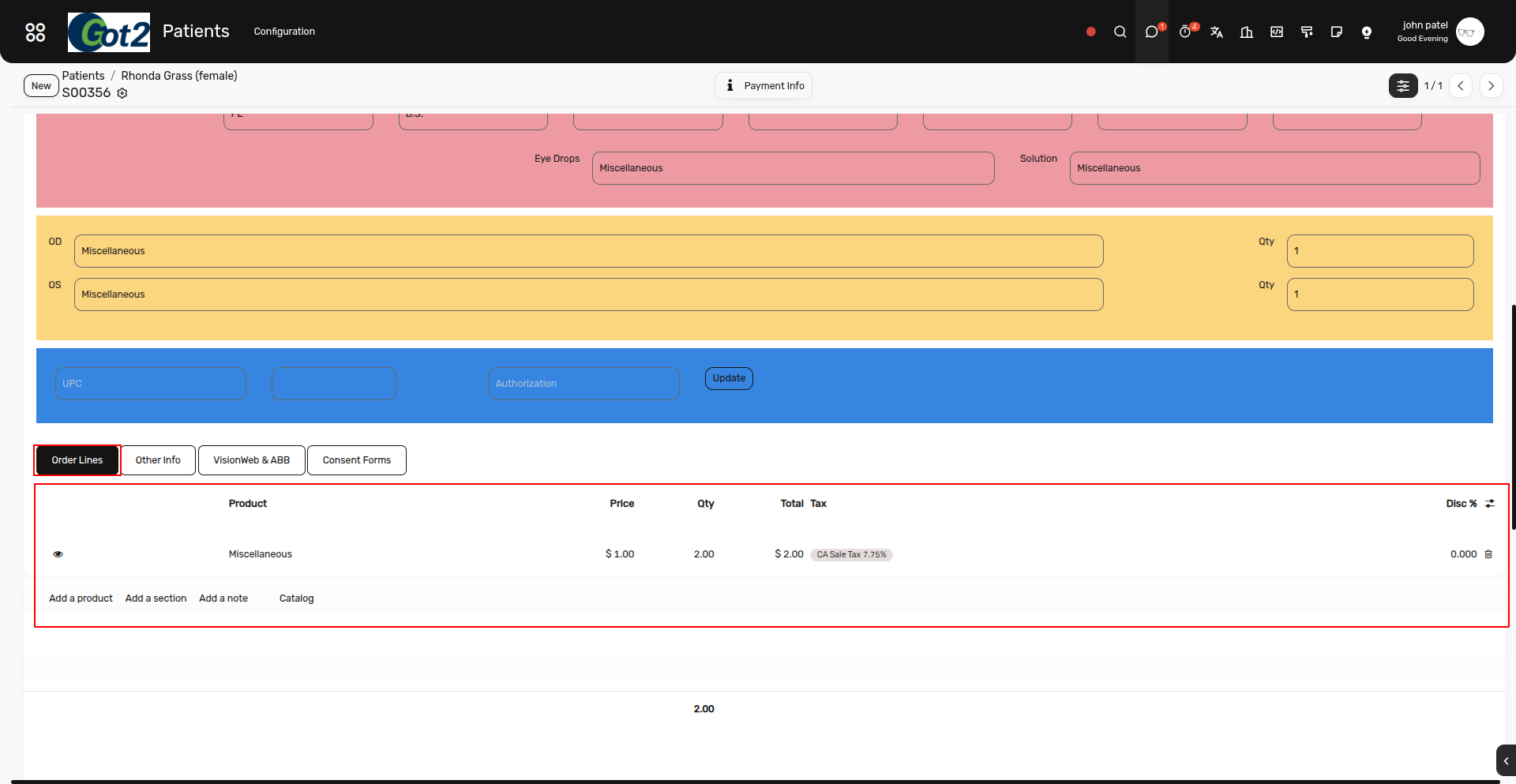
After that, click the Update button to confirm the details.
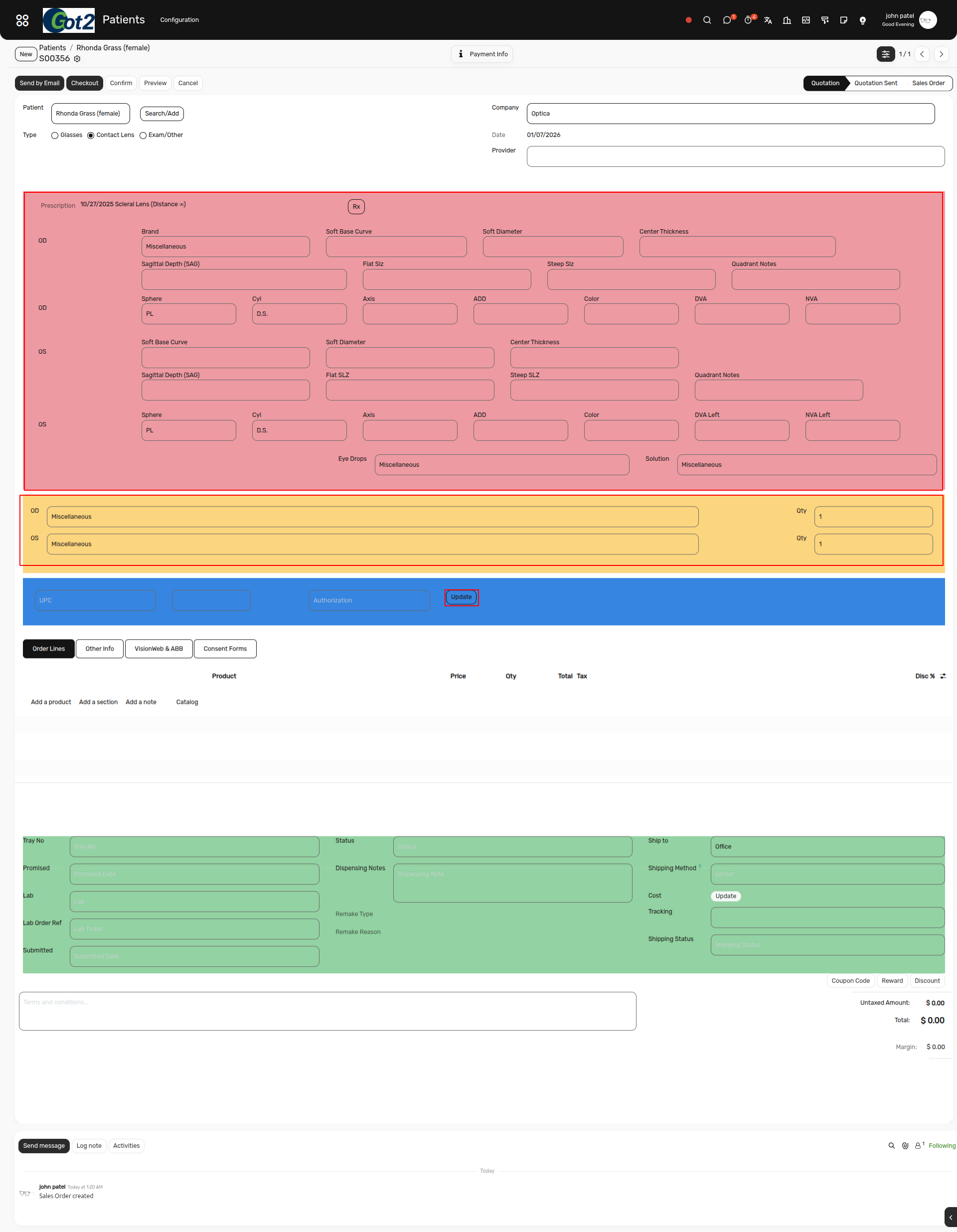
Below, you can see the Sale Order Line created with the products and their respective quantities.
2) From Sale Order Screen
Navigate to the Sales module and click Create to add a new record. Then, select the patient and set the Type to Contact Lens. After that, Click on the RX button to add the RX on the Sale Order Screen.

In the screen below, you will see all the Contact Lens Prescriptions, including Contacts, Hard, and Scleral.
Simply select the prescription for which you want to create a sale order, and all the prescription details will be automatically filled in the Sale Order screen.


After then just Click on the Update button to Create the sale order lines.

So here this screen you can add the Any types of Prescription like Contact, hard and Scleral and make the sale order from this way.