How to Create Custom Barcode Labels Format
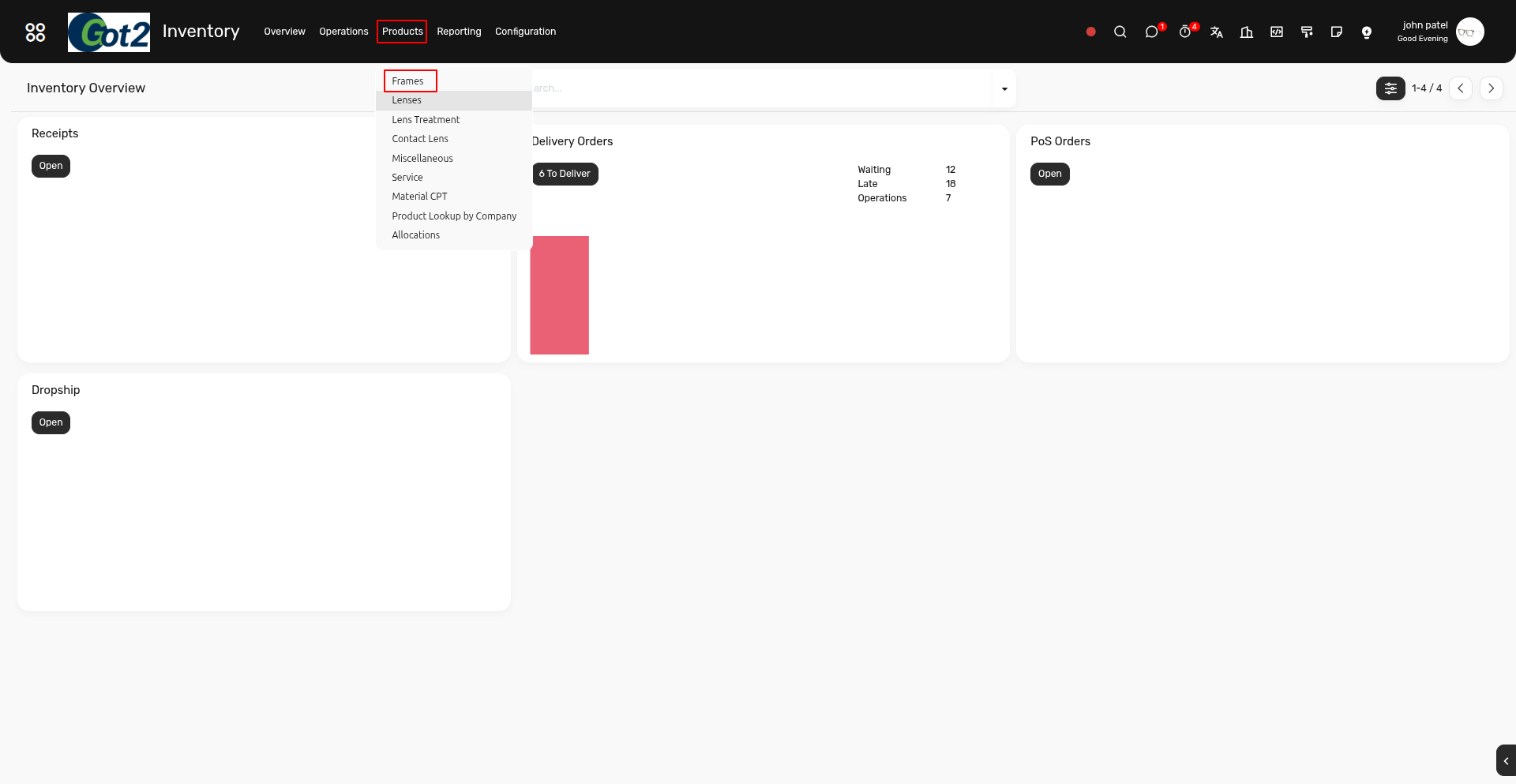
1) Navigate to Inventory > Products > Frames
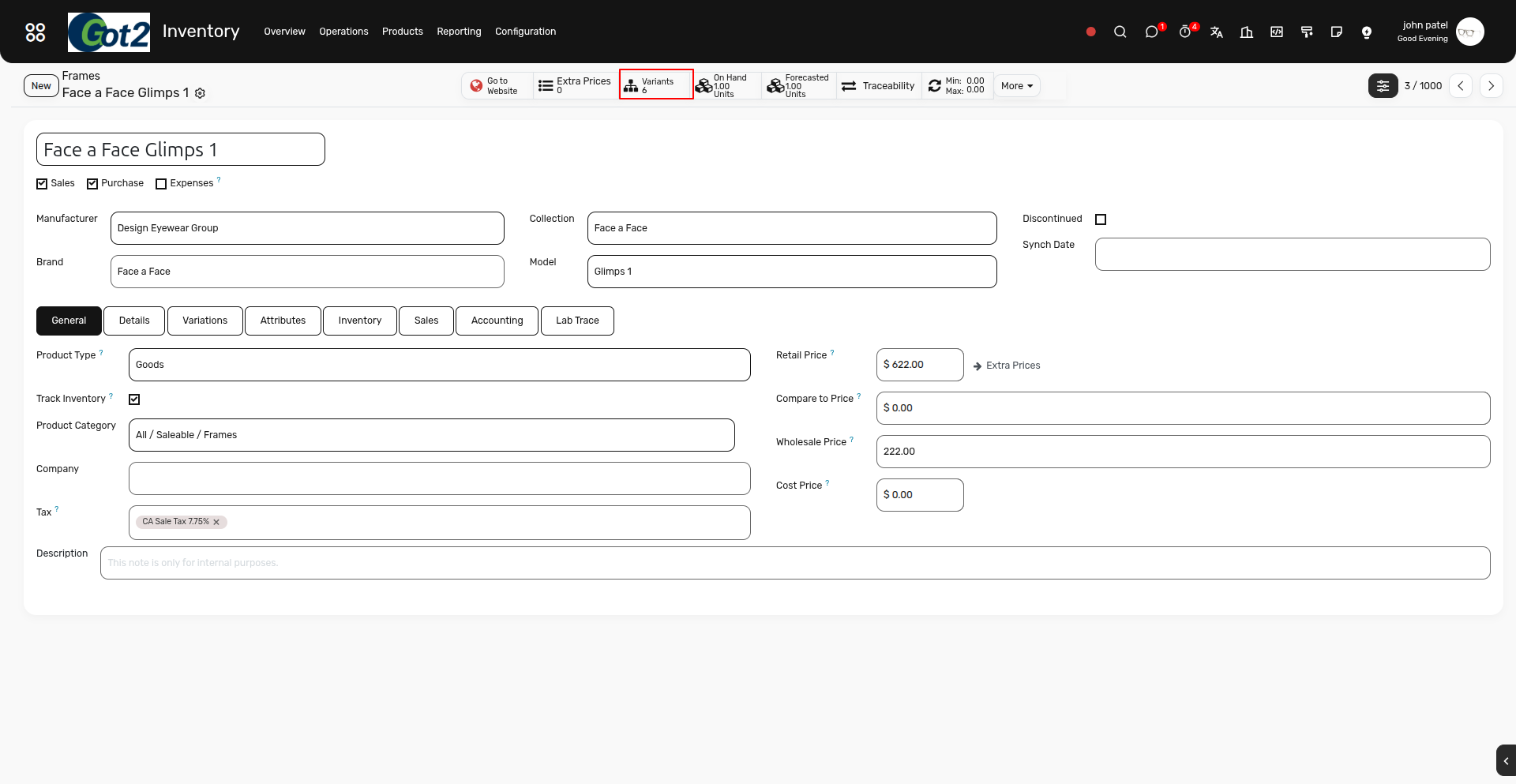
2) Open any frame record and Click on the Variation Smart Button .
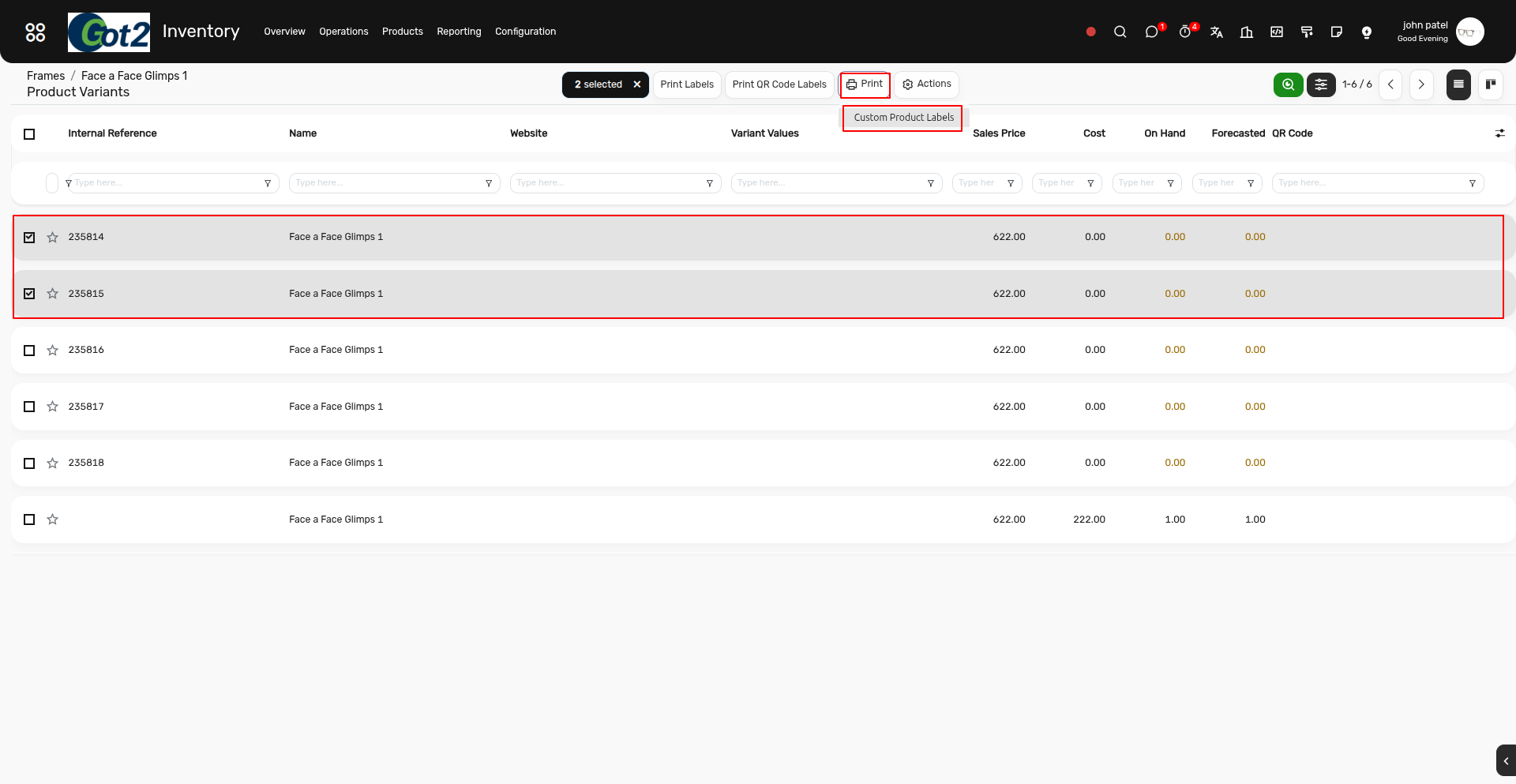
3) Select the Frames Variation and Click on Print Button and Click on Custom Product Labels
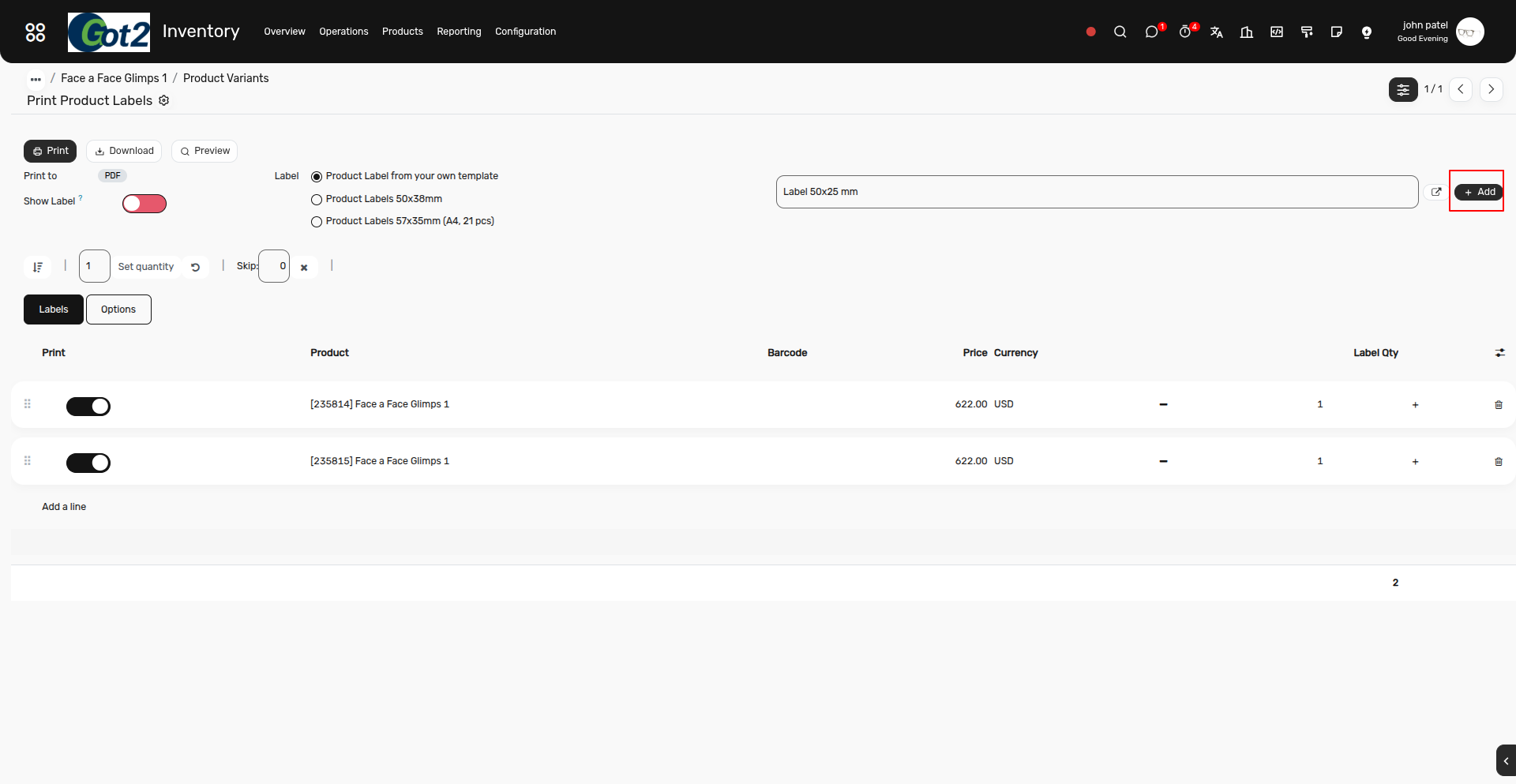
4) Then , Click on Add Button to Create a new Custom Lable format
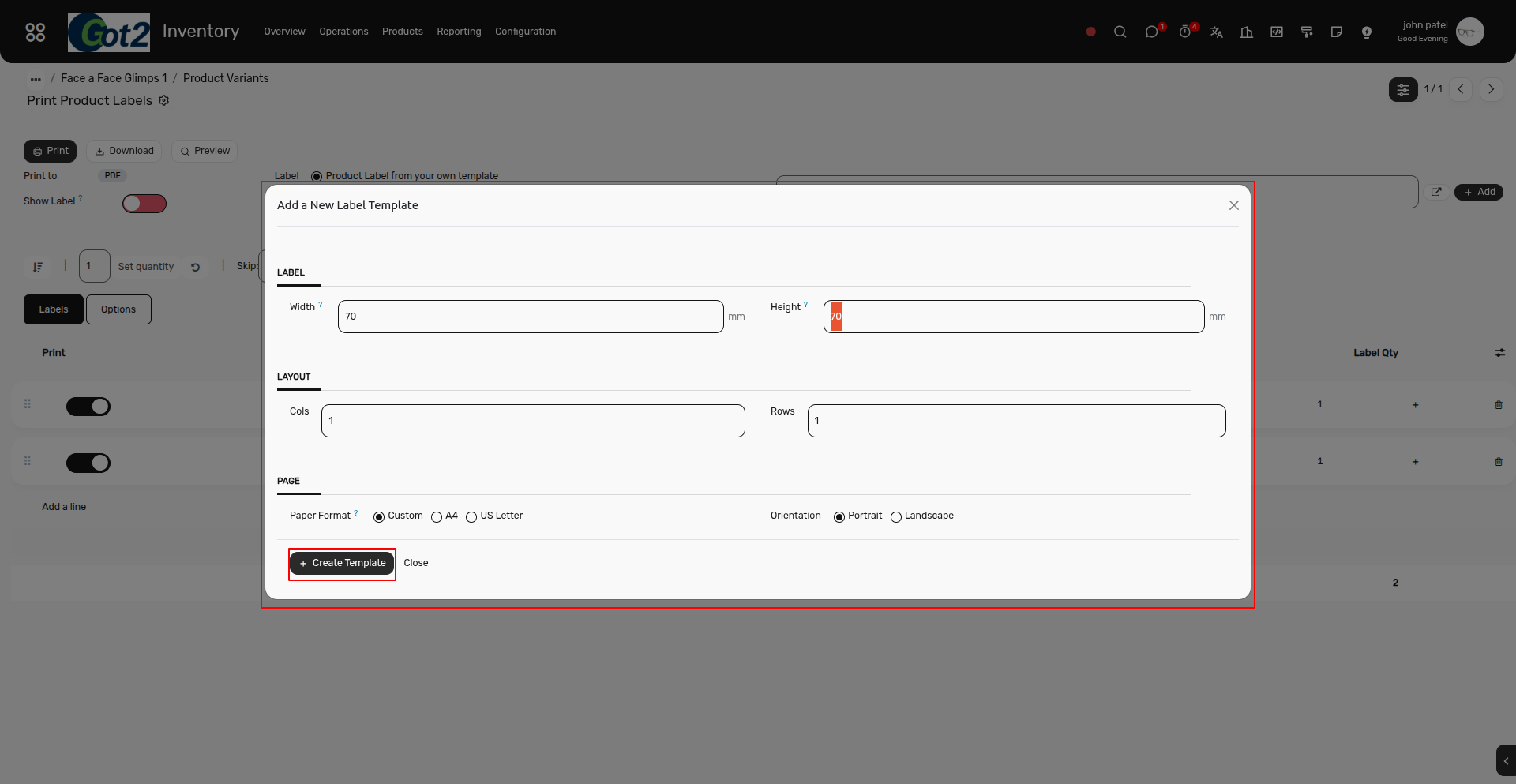
5) Then, fill in the fields below for page height, width, and any other required fields as needed and Click
on Create Template button.
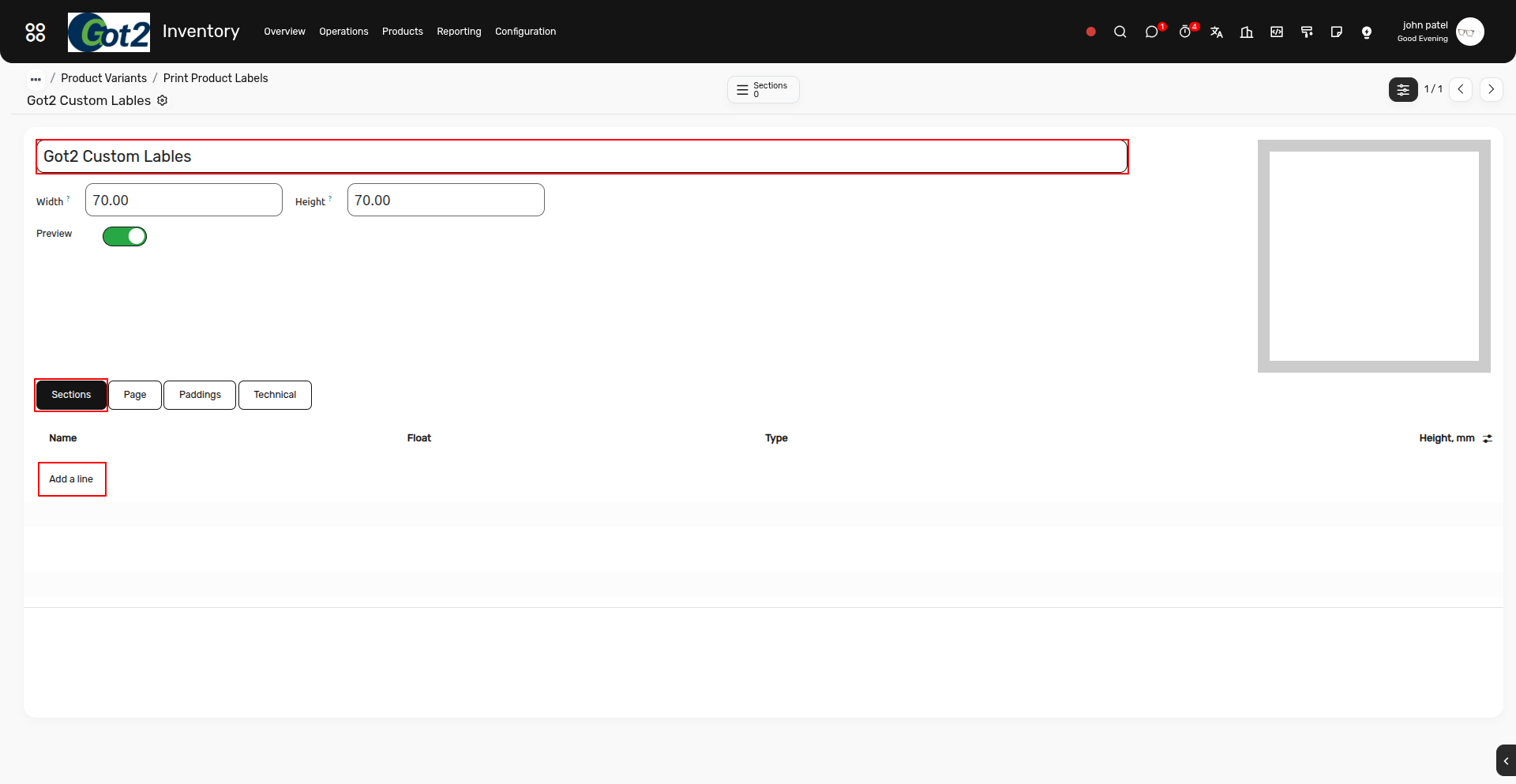
6) Then, you will be redirected to that template. So First of all i have changed the name of template to my custom name and then you need to add values such as the product name, price, and barcode. To do this, go to the Section tab and click on Add a Line.”
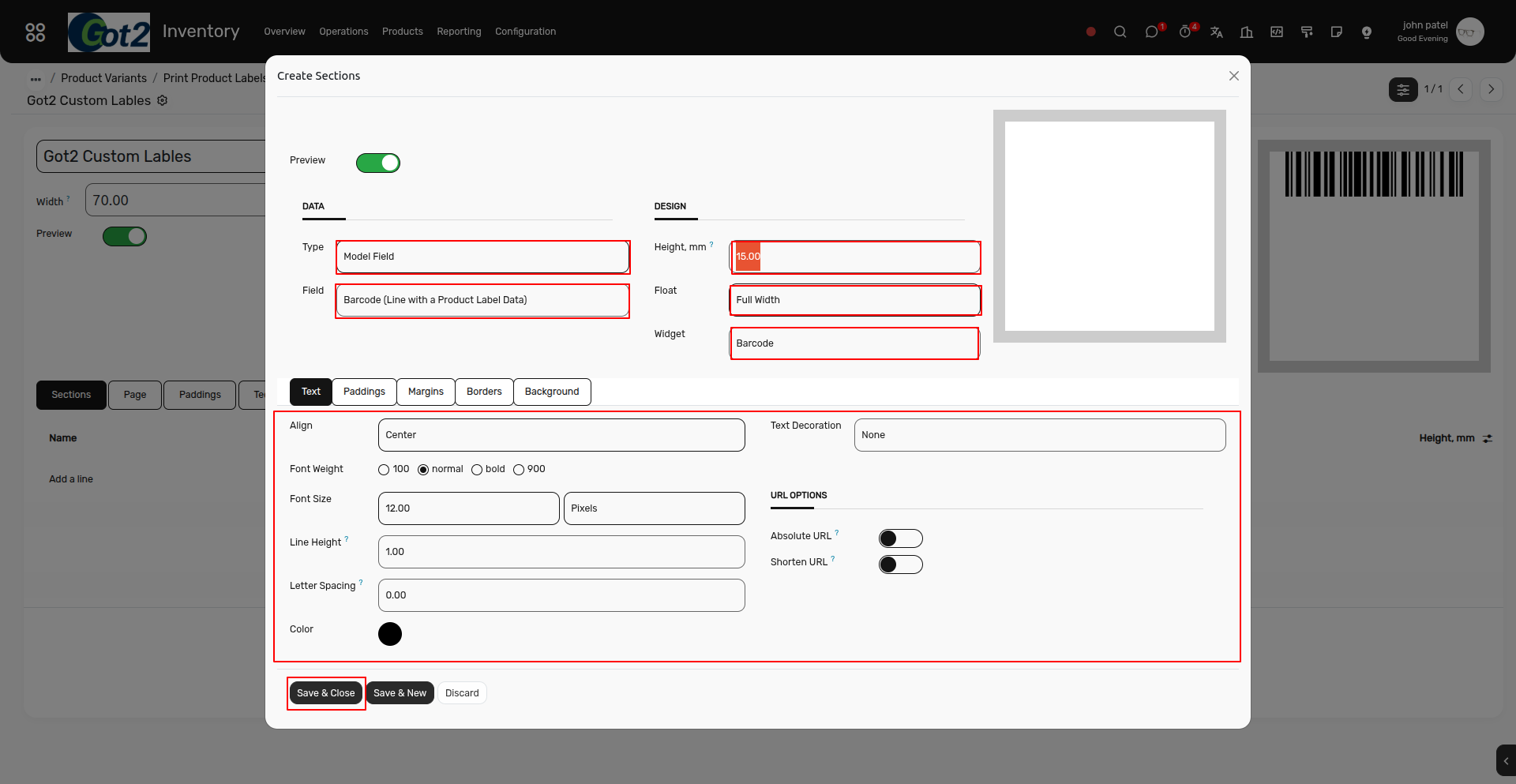
7) In the Type field, you can choose options such as Text, Model Field, Price, Promo Price, Multiple Prices, Product Attributes, and Image. Users can add any of these types of values to the template.
Here, I selected Model Field, set the height to 15.00 mm, and chose Barcode as the widget. Additionally, you can set the top, left, right, and bottom margins, as well as adjust the font weight, alignment, and other settings.
After completing the setup, click on the Save button
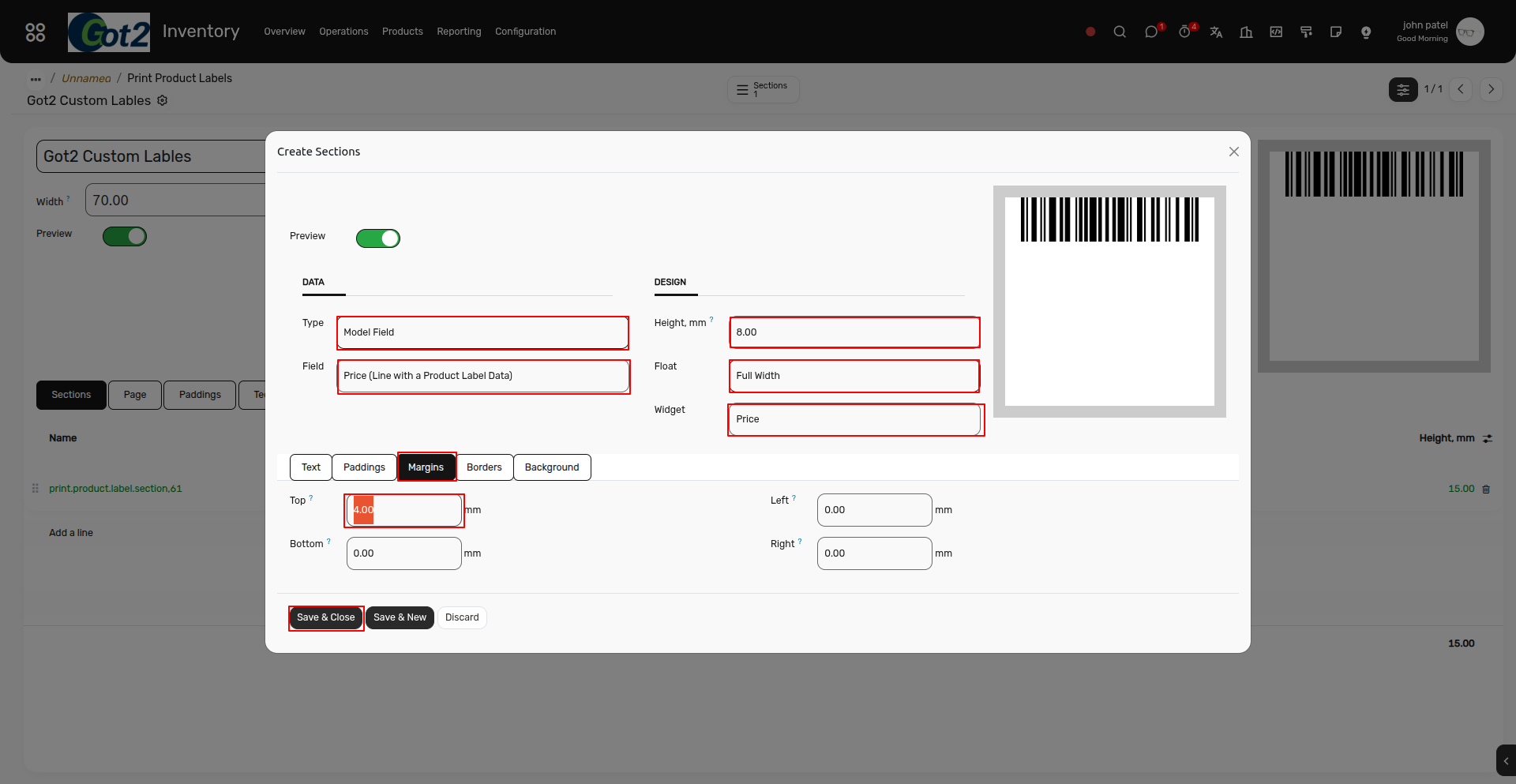
8) Lets add product price into the Templates, So for that again Click on the Add a line button ...
and Select type is model field and select the price field and set the height for that . Additionaly i have set the Top margin for Space between barcode and price and Save it.
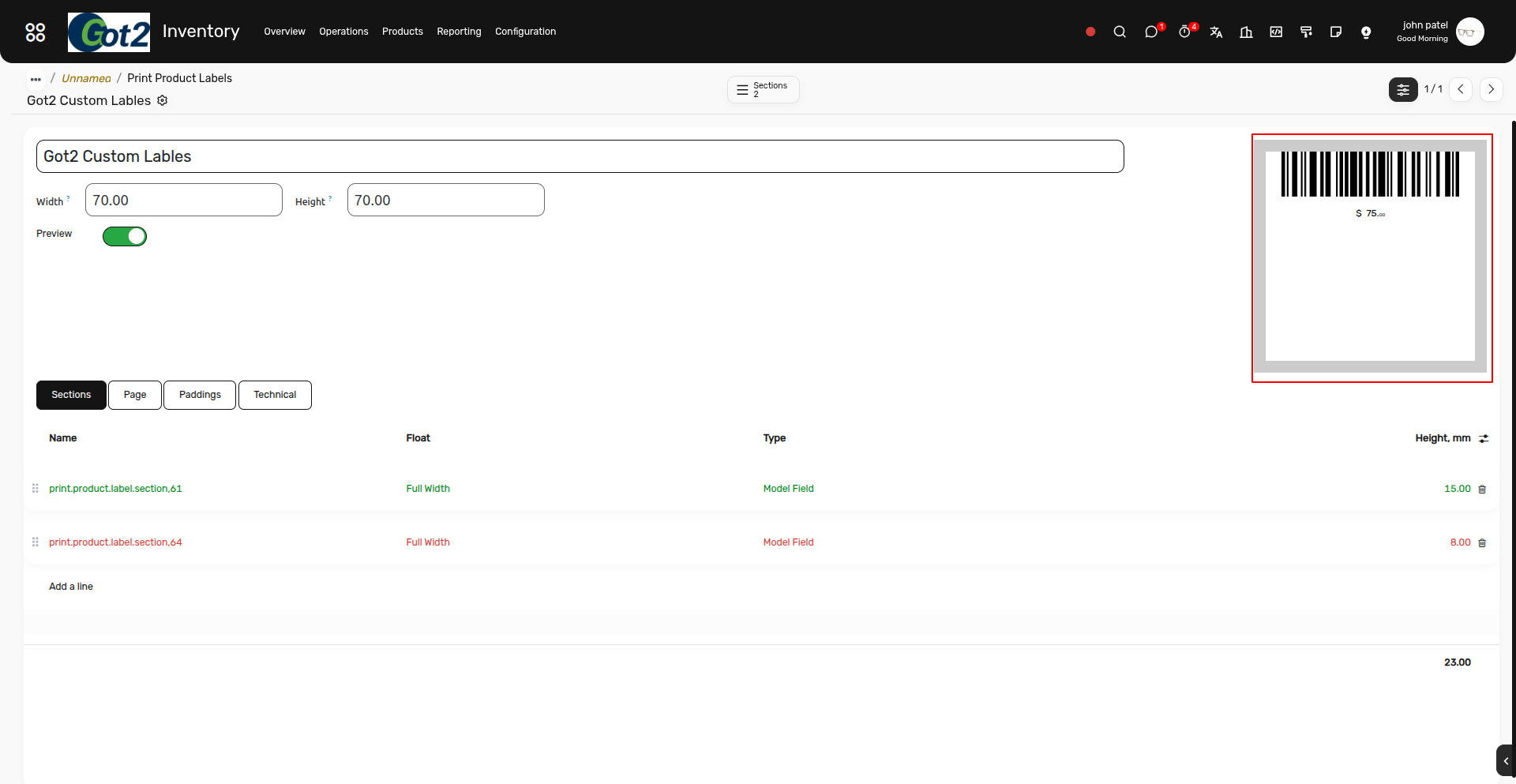
9) So , Bellow you Can see the Preview of the Custom template in the right side of the page.
10 ) Now Lets Print the barcode for that Template. So , Just Go bak one screen and Select the Custom template name and Print the barcode.
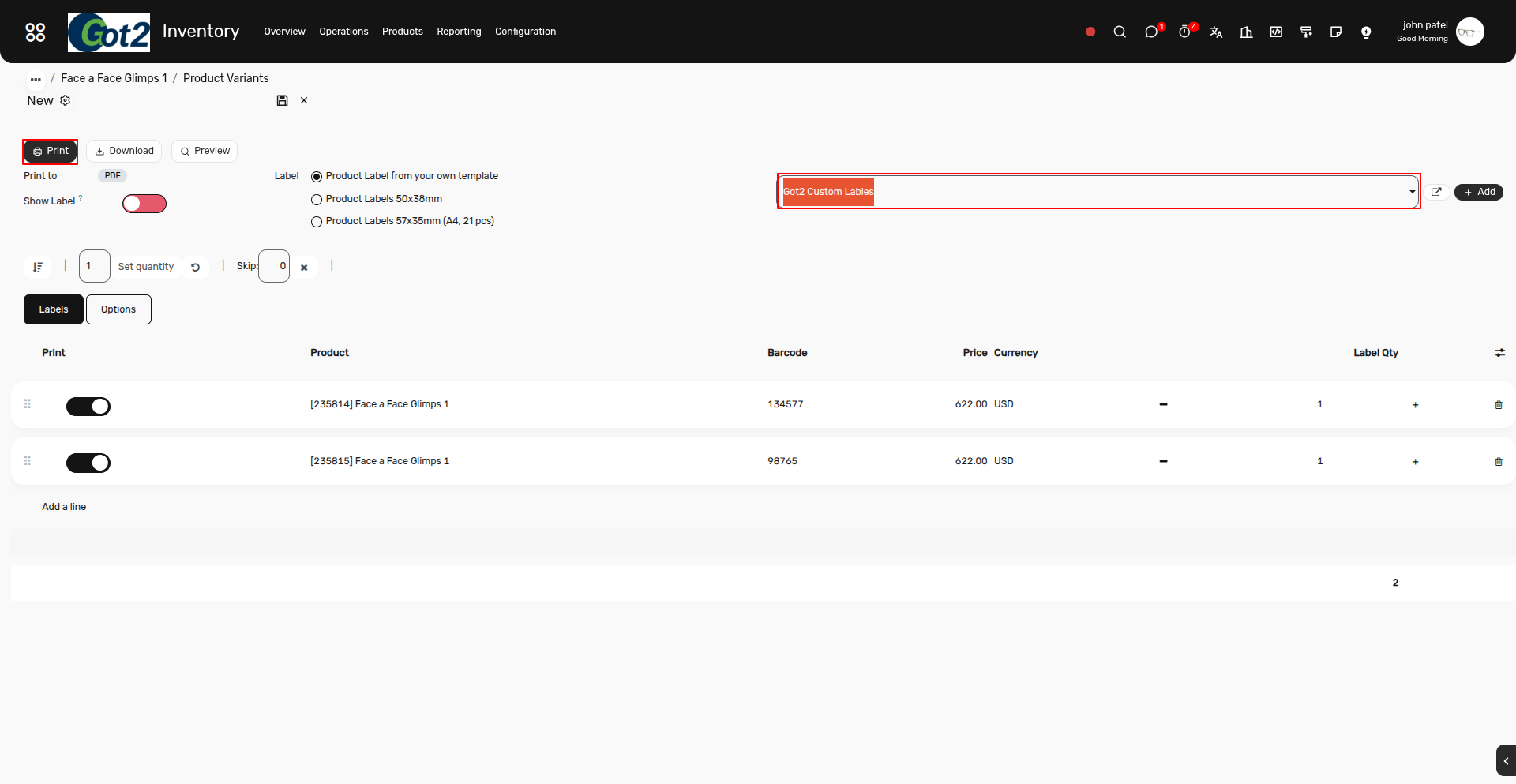
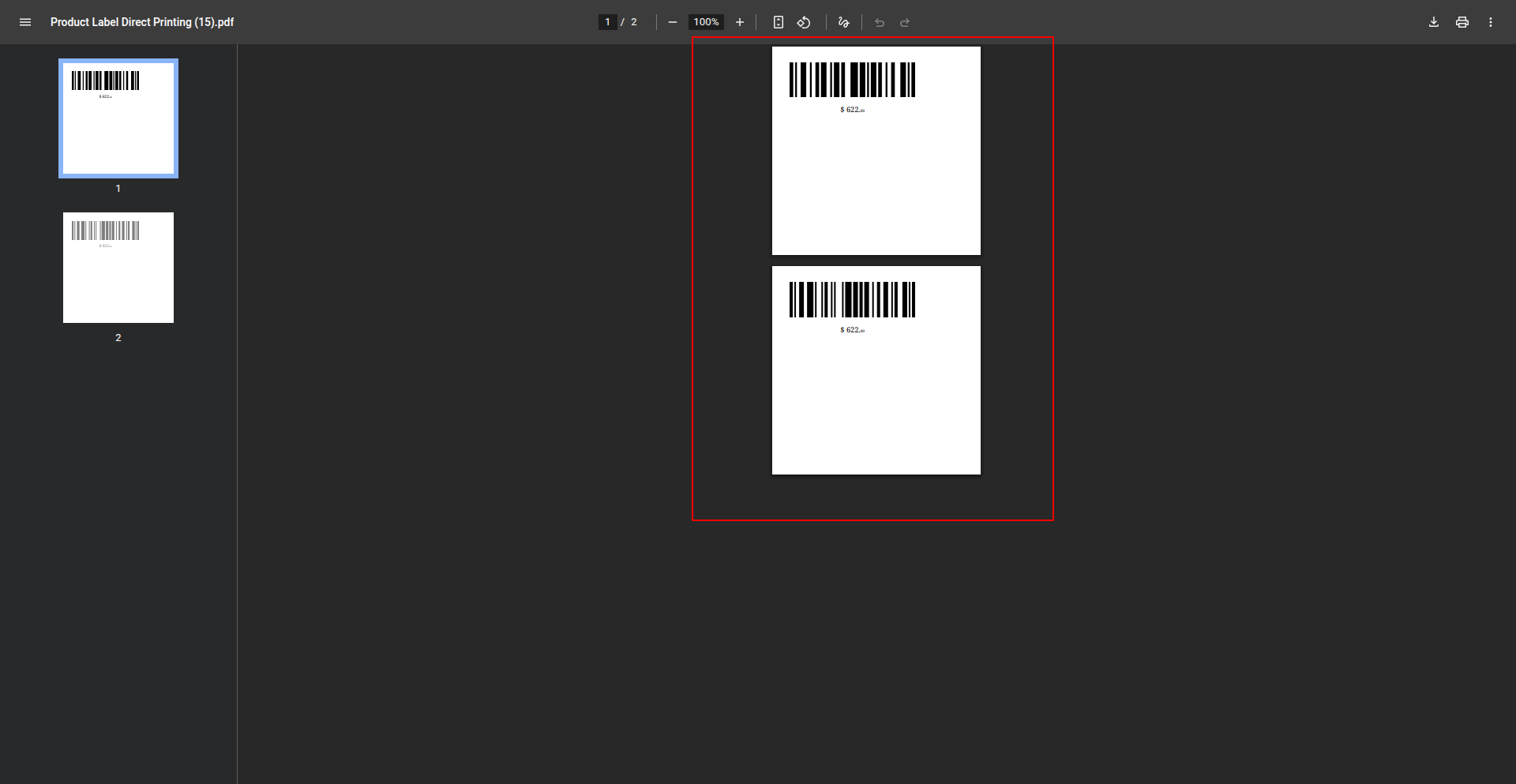
11) Result :-