
Discuss Chat
Discuss
Discuss is an internal communication app that allows users to connect through messages, notes, file sharing, and video calls. It enables communication through a persistent chat window that works across all applications, or through the dedicated Discuss dashboard.
Discuss Dashboard
Upon opening the Discuss app, the Discuss dashboard appears. The dashboard gives immediate access to three key views in the left panel:
- 📥 Inbox — Unread messages waiting for attention.
- ⭐ Starred — Messages that have been starred/bookmarked for follow-up.
- 🕐 History — Chatter updates for records in the database that the user has been assigned to or tagged on.
Direct Messages
Direct messages allow users to communicate privately with one or multiple team members.
To start a new direct message, click the + icon next to Direct Messages in the sidebar, and enter the name of the desired person in the Start a conversation search bar.
Tip: Multiple names can be entered in the search bar. Once all names have been added, press Enter to start a group conversation.
Direct Message Actions
Hover over any message in the chat window to reveal a menu of actions:
- 😊 Add a Reaction — React to the message with an emoji.
- ↩ Reply — Reply to the message in a thread.
- ⭐ Mark as Todo — Add the message to the Starred tab.
- … Expand — Reveals additional actions: 📌 Pin, 👁 Mark as Unread, ✏️ Edit, 🗑️ Delete.
Conversation Actions
The icons in the top-right corner of any direct message conversation:
- 🔔 Notification Settings — Set notification preferences for this conversation.
- 📞 Start a Call — Begin a voice/video meeting.
To rename a group conversation, click the name at the top of the direct message window and edit it. A description can also be added in the Add a description field.
Note: The Add a description field is only available for group messages with more than two participants.
User Status
User availability is displayed as a colored circle in the bottom-right corner of a contact's photo in the Members List:
| Color | Status |
|---|---|
| 🟢 Green | Online |
| 🟠 Orange | Away |
| ⚪ White | Offline |
| ✈️ Airplane | Out of office |
Leave a Conversation
To leave a direct message conversation, click the ✕ (Leave this channel) icon next to the conversation name in the Direct Messages sidebar section.
Note: Leaving a conversation does not delete the message history. The conversation history is visible again when a new direct message is started with the same person or group.
Meetings (Voice & Video Calls)
In Discuss, Meetings are voice/video calls.
To start a meeting from the Discuss dashboard: Click Start a meeting in the top-left corner, then select who to invite from the Invite People drop-down.
To start a meeting from a direct message: Click the 📞 Start a Call icon in the top-right corner of the conversation.
In-Call Controls
| Icon | Action |
|---|---|
| 🎤 Microphone | Mute / Unmute |
| 🎧 Headphones | Deafen / Undeafen |
| 📷 Camera | Turn camera on/off |
| ✋ Hand | Raise Hand |
| 🖥️ Desktop | Share Screen |
| ⤢ Arrows | Enter Full Screen |
Notification Preferences
User-Specific Notification Settings
To configure notification preferences, navigate to Settings app → Manage Users, select a user, then click the Preferences tab.
The Notification field has two options:
- Handle by Emails (default) — A notification email is sent every time a message is sent from a record's chatter, a note is sent with an @mention, or a notification is sent for a record the user follows.
- Handle in app — The above notifications appear in the Discuss app's Inbox instead of by email.

Conversation-Level Notification Settings
To set notification preferences for a specific direct message or channel conversation, click the 🔔 Notification Settings icon in the top-right corner of the conversation.
Chat from Any Application
The Discuss app enables communication from within any application. To view chats and channels, or start a new message without leaving the current page, click the speech bubble icon in the upper-right corner of the database header. A persistent chat window is available across all applications.

Channels — Team Communication
Channels organize discussions between teams, departments, projects, or any group that requires regular communication. Employees can communicate in dedicated spaces around specific topics, updates, and developments.
Create a New Channel
To create a new channel, go to the Discuss app and click the + (plus) icon next to the Channels heading in the left sidebar.
The channel's Group Name, Description, and Privacy settings can be modified by clicking the ⚙️ (gear) icon next to the channel's name in the sidebar.

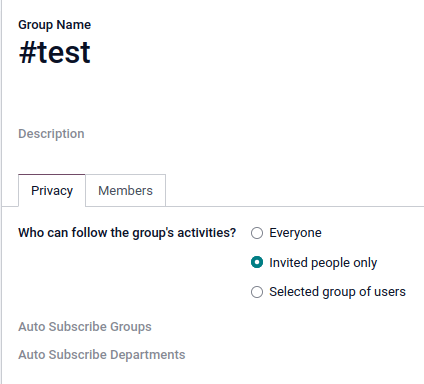
Privacy Tab
To control which users can join a channel, open the channel's settings page and navigate to the Privacy tab.
- Authorized Group — Limits access to a specific user group. Only users in the selected group can join the channel.
- Auto Subscribe Groups — Automatically adds users of a specific group as followers/members of the channel. (Different from Authorized Group — this adds users as members rather than merely granting permission to join.)
- Auto Subscribe Departments — Same as Auto Subscribe Groups, but at the department level.
Note: Users who are automatically added as followers can manually edit their subscription to the channel.
Invite Members to a Channel
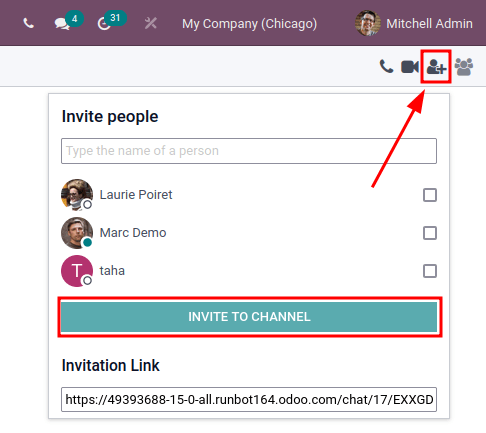
From the channel settings: Click the Members tab → Add a line → select a Partner or Guest.
From the Discuss dashboard: Select the channel, click the 👤+ (add user) icon in the top-right, add users, then click Invite to Channel.
Quick Search Bar
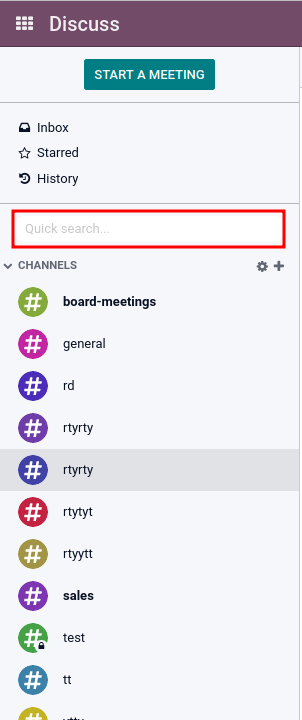
Once at least 20 channels, direct messages, or live chat conversations are pinned in the sidebar, a Quick search… bar appears. This provides a convenient way to filter conversations and find relevant communications.
Browse and Find Channels
To view all available channels, click the ⚙️ (gear) icon to the right of the CHANNELS menu. Users can join or leave channels by clicking the Join or Leave buttons on the channel cards.
The Search… function accepts wildcards using the underscore character _ . Specific searches can be saved using Favorites → Save Current Search.
Link a Channel in the Chatter
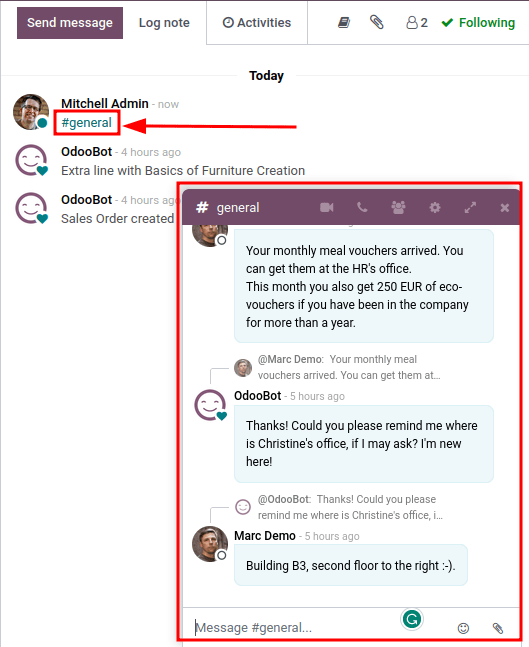
Channels can be linked in the chatter of any record to share relevant discussions. Type # followed by the channel name and press Enter or click the channel name. A clickable link to the channel appears in the chatter note. Clicking the link opens a chat window for that channel in the lower-right corner.
Configure ICE Servers with Twilio
The platform uses WebRTC API and peer-to-peer connections for voice and video calls. If a call attendee is behind a symmetric NAT, an ICE server must be configured to establish a connection. Twilio is the recommended service for this.
Step 1 — Create a Twilio Account
- Go to twilio.com and click Sign up.
- Enter your name, email address, create a password, and accept Twilio's terms of service.
- Click Start your free trial and verify your email address.
- Enter your phone number and verify it via the SMS code Twilio sends.
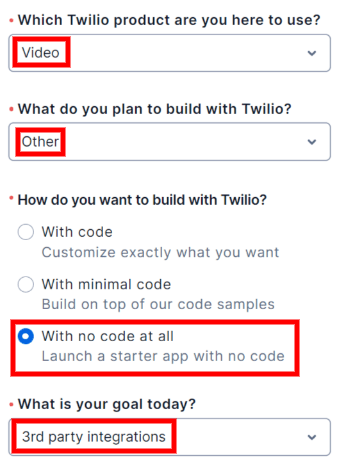
On the Twilio welcome page, answer the setup questions as follows:
| Question | Answer |
|---|---|
| Which Twilio product are you here to use? | Video |
| What do you plan to build with Twilio? | Other |
| How do you want to build with Twilio? | With no code at all |
| What is your goal today? | 3rd party integrations |
Change the billing country if necessary, then click Get Started with Twilio.
Step 2 — Locate Account SID and Auth Token
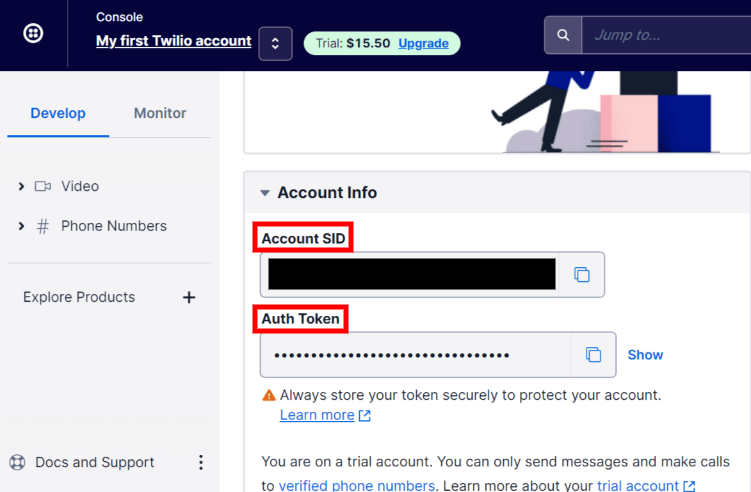
In the Twilio account dashboard, click Develop in the sidebar. Under the Account Info section, locate the Account SID and the Auth Token. Both are required to connect Twilio to the platform.
Step 3 — Connect Twilio to the Platform
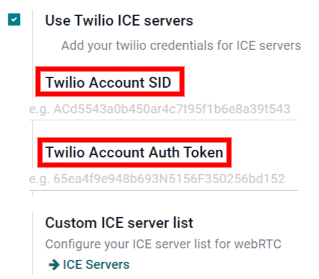
- Navigate to Settings → General Settings → Discuss.
- Check the box next to Use Twilio ICE servers.
- Enter the Account SID and Auth Token from Twilio.
- Click Save.
Step 4 — Define Custom ICE Servers (Optional)
This step is not required for the Twilio configuration. However, if Twilio is not configured or not working, the platform falls back to a custom ICE servers list.
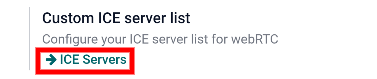
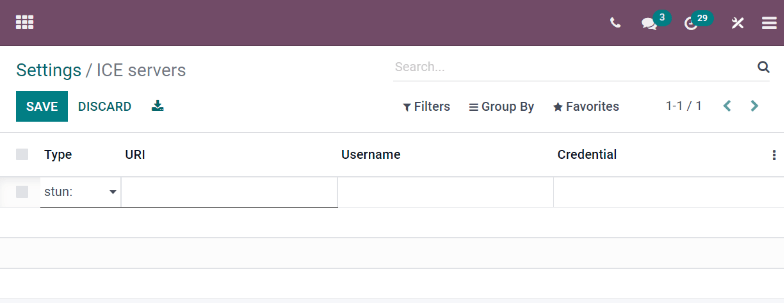
In Settings → General Settings → Discuss, click the ICE Servers button under Custom ICE server list. This opens the ICE Servers page where a custom list can be defined.
Note: For on-premise installations, the Python package
python3-geventis required for the Discuss module to run calls and video calls on Ubuntu (Linux) servers.
Chatter
The Chatter feature is integrated throughout the platform to streamline communication, maintain traceability, and provide accountability. Chatter windows (called composers) are present on almost every record in the database and allow communication with both internal users and external contacts. Chatter composers also enable users to log notes, upload files, and schedule activities.
Chatter Thread
A chatter thread is found on most records and serves as a log of all updates and edits made to that record. When a change is made, a note is automatically logged with the details of the change and a timestamp.
Example: If a user updates the email address on a contact record, the chatter logs: the date of the change, the previous email address, and the updated email address.
If a record was created or edited via an imported file, or updated by the system, the chatter logs the change and credits it to SystemBot.
Followers
A follower is a user or contact added to a record who receives notifications when the record is updated, based on their subscription settings.
Note: If a user creates or is assigned to a record, they are automatically added as a follower.
Follow a Record
Navigate to any record with a chatter thread. Click Follow in the top-right above the chatter composer. The button changes to Following. Click again to Unfollow.
Add Followers
Click the 👤 (followers) icon above the chatter to open the current followers list. Click Add Followers to open the Invite Follower pop-up. Select contacts from the Recipients drop-down, tick Send Notification if desired, edit the notification message, then click Add Followers.
Remove Followers
Click the 👤 (followers) icon, find the follower to remove, and click the ✕ (remove) icon next to their name.
Edit Follower Subscription
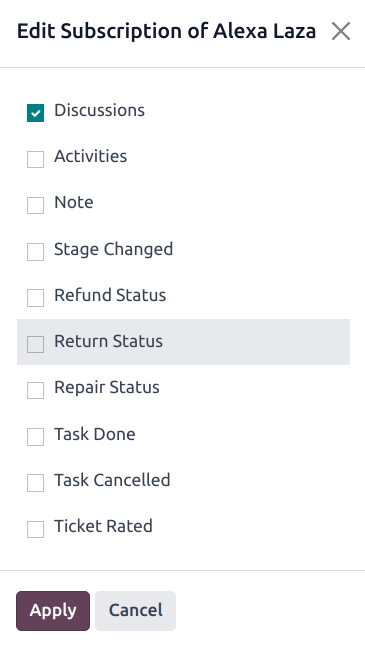
Click the 👤 (followers) icon, find the follower, and click the ✏️ (pencil) icon to open the Edit Subscription pop-up. Tick or clear checkboxes for the types of updates the follower should receive, then click Apply.
Note: Subscription options vary by record type. For example, a follower of a Helpdesk ticket may be subscribed to ticket ratings — this option would not exist on a CRM opportunity.
Log Notes
Internal notes are only visible to internal users and are available on any record with a chatter thread.
- Open a record and click Log note above the chatter composer.
- Enter the note in the composer.
- To tag an internal user, type
@followed by their name and select from the drop-down. The tagged user is notified by email or in-app depending on their settings.
Important: External contacts can also be tagged in internal log notes. When tagged, the contact receives an email with the contents of the note they were mentioned in, including any attachments added to that note. If they reply to the email, the reply is logged in the chatter and they are added as a follower. External contacts cannot view the full chatter thread — they only receive specific updates based on their subscription settings or when directly tagged.
Send Messages
To send a message from a record's chatter (to external contacts or followers):
- Open any record and click Send message above the chatter composer.
- Enter the message content.
- Click Send or press
Ctrl + Enter.
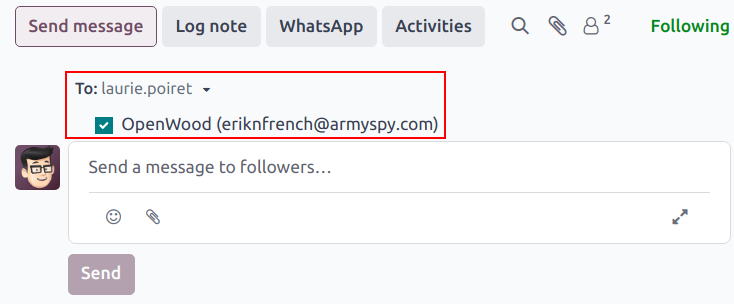
Followers of the record are automatically added as recipients.
Warning: Followers are added as recipients automatically. If a follower should not receive a specific message, remove them as a follower before sending.
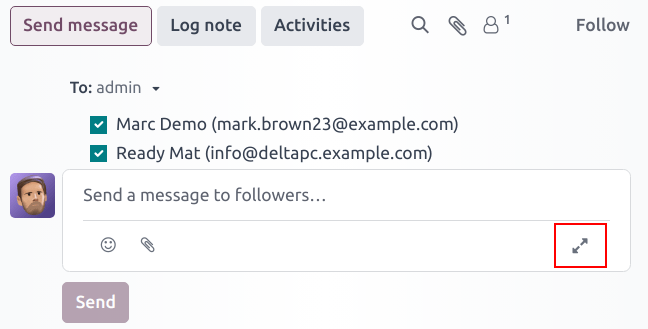
Expand Full Composer
The chatter composer can be expanded into a larger pop-up window for additional options.
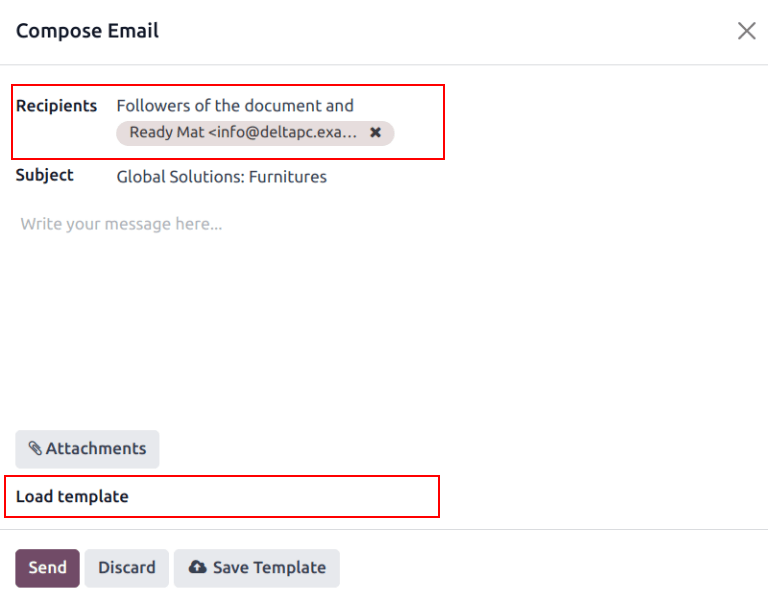
Click the ⤢ (expand) icon in the bottom-right corner of the composer. The Compose Email pop-up opens with:
- Recipients — Pre-populated from record followers; additional recipients can be added.
- Subject — Auto-populated from the record title; can be edited.
- Template selector (|ve| icon) — Select an email template, or overwrite/delete existing ones.
- 📎 (paperclip) — Attach files before sending.
Generate Text with AI
To generate message text using AI from the expanded chatter composer:
- Click the AI icon in the expanded composer.
- In the Generate Text with AI pop-up, enter a prompt describing the type of content needed.
- Press Enter or click the ✈ (paper plane) icon.
- Click Insert to add the generated text to the message composer.
Tip: Before sending, always review and edit the AI-generated content, especially any text in brackets that may need to be replaced with specific details.


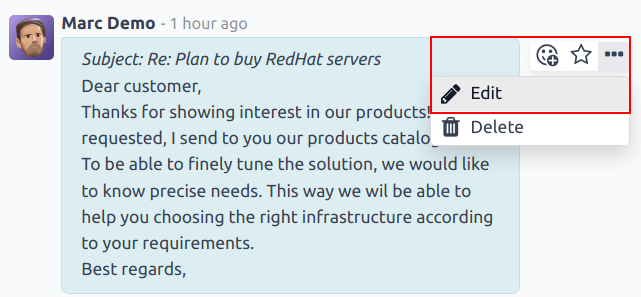
Edit Sent Messages
Messages can be edited after sending to fix typos, correct mistakes, or add missing information.
Click the ⋮ (menu) icon to the right of the message, then select Edit. Make the necessary changes. Press Ctrl + Enter to save, or Escape to discard.
Note: Editing a sent message does not re-send the message to recipients — the edit is silent.
Important: Users with Admin-level access can edit any sent messages. Users without Admin rights can only edit messages they created.
Search Messages
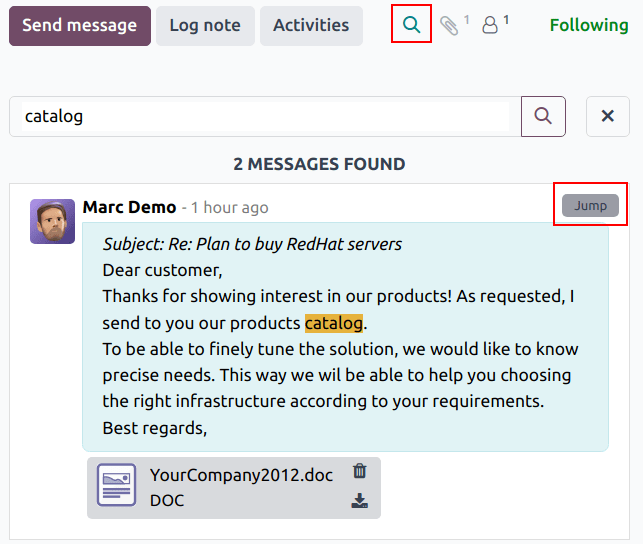
To find a specific message in a long chatter thread:
- Click the 🔍 (search) icon in the top-right above the chatter composer.
- Enter a keyword or phrase and press Enter.
- Matching messages and notes are listed with the keyword highlighted.
- Hover over a result to reveal the Jump button. Click it to jump directly to that message in the thread.
Schedule Activities
Activities are follow-up tasks tied to a record. They can be scheduled from chatter threads, Kanban views, list views, or activity views.
To schedule from a chatter thread:
- Click the Activities button at the top of the chatter.
- In the Schedule Activity pop-up, select an Activity Type.
- Enter a title in the Summary field.
- Assign to a user in the Assigned to field (defaults to yourself).
- Add any additional information in the Log a note… field.
- Set or adjust the Due Date (auto-populated based on the activity type).
- Click one of the action buttons:
- Schedule — Adds the activity to the chatter under Planned activities.
- Schedule & Mark as Done — Adds and immediately marks as complete.
- Done & Schedule Next — Marks as done and opens a new activity window.
- Cancel — Discards the activity.
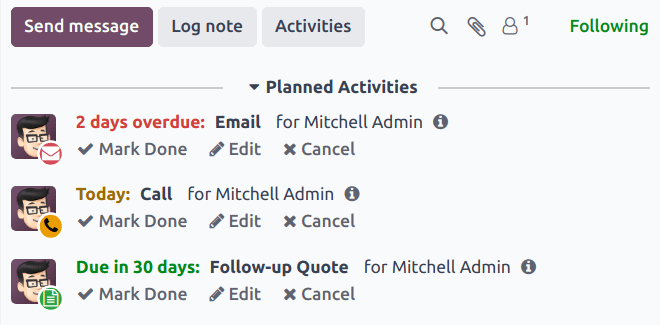
Scheduled activities appear in the chatter under Planned activities and are color-coded by due date:
- 🔴 Red — Overdue
- 🟡 Yellow — Due today
- 🟢 Green — Due in the future
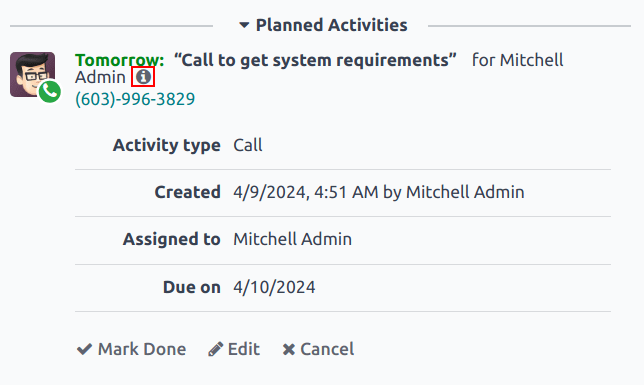
Click the ℹ️ (info) icon next to any planned activity to see its details.
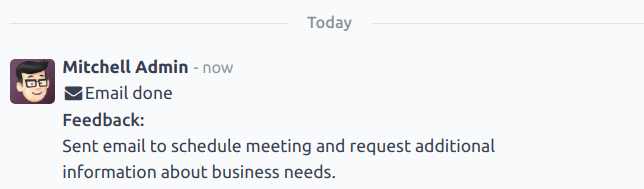
To mark an activity as done: Click Mark Done under the activity entry in the chatter. Add any final notes in the Mark Done pop-up, then click Done & Schedule Next, Done, or Discard.
Attach Files
Files can be attached to a chatter thread either to send with messages or to include with a record.
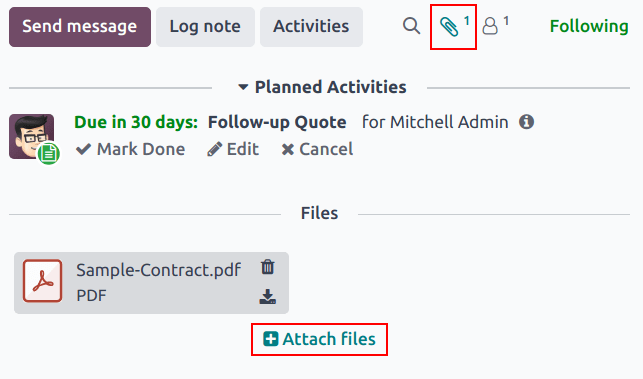
To attach a file: Click the 📎 (paperclip) icon at the top of the chatter composer. A file explorer pop-up opens. Navigate to the desired file, select it, and click Open. Files can also be dragged and dropped directly onto the chatter thread.
Once attached, files are listed under a Files heading in the chatter thread.
Note:
- Once at least one file has been added, an Attach files button appears below the Files heading. Use this button to add additional files.
- After the Files section appears, clicking the 📎 (paperclip) icon toggles the Files section visible/invisible rather than opening the file explorer.
- Any user with access to the chatter thread can download attached files by clicking the ⬇️ (download) icon next to the file.
Integrations
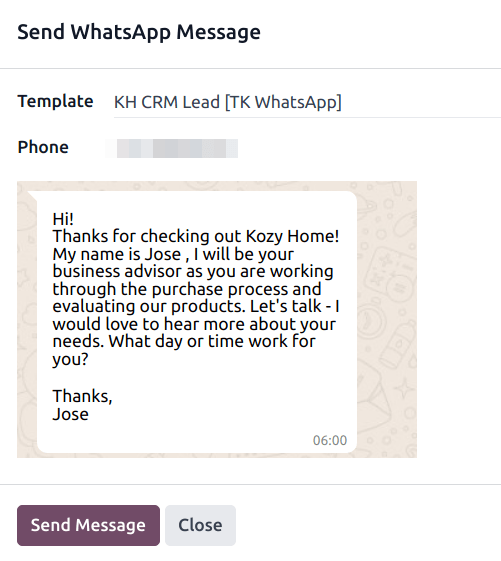
After WhatsApp has been configured and enabled, a WhatsApp button appears above the chatter composer on applicable records. Clicking this button opens a Send WhatsApp Message pop-up if one or more approved WhatsApp templates are found for that model.
Important: WhatsApp templates must be approved before they can be used. WhatsApp must be configured in the platform settings before this feature is available.
Google Translate
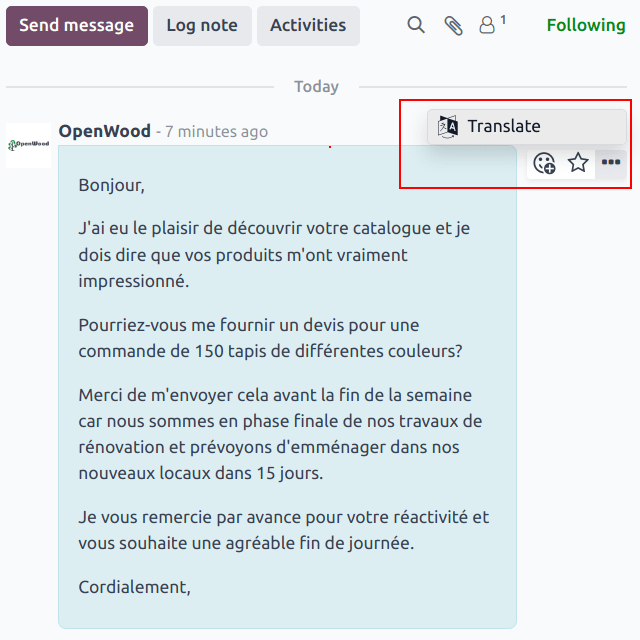
Google Translate can translate user-generated text in the chatter. To enable it:
- Create an API key through the Google API Console.
- Go to Settings app → Discuss section.
- Paste the API key in the Message Translation field and click Save.
To translate a message: Click the ⋮ (menu) icon to the right of a chatter message, then select Translate. The content translates to the language set in the user's preferences.
Important: Using the Google Translate API requires a current billing account with Google.
Canned Responses
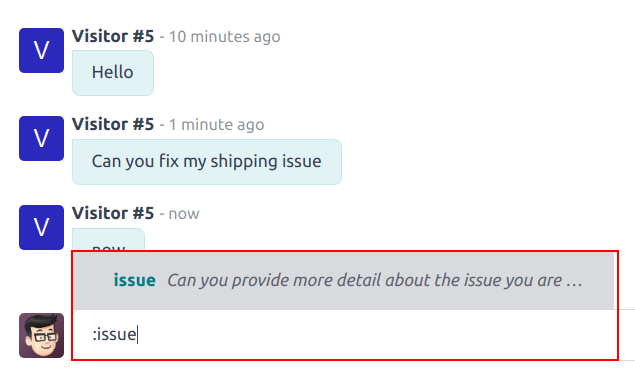
Canned responses are customizable inputs where a typed shortcut automatically populates a longer, pre-written response. They save time, reduce typing errors, and ensure consistency across customer interactions.
A canned response has two components:
- Shortcut — The keyword or key phrase the user types.
- Substitution — The full message that replaces the shortcut.
Canned responses can be used in the Discuss app, in Live Chat conversations, and in Chatter composers — including direct messages, channel conversations, and WhatsApp messages.
Create Canned Responses
To create or manage canned responses, go to Discuss app → Configuration → Canned Responses, then click New.
A new blank line appears in the list. Fill in the following fields:
- Shortcut — The keyword the user will type to trigger the response. Keep it short, memorable, and connected to the topic of the substitution.
- Substitution — The full message that replaces the shortcut.
- Description — Optional context about the response, such as guidelines for when it should or should not be used.
- Created by — Automatically populated with the name of the user who creates the response. Cannot be edited.
- Authorized Group — The user groups that can use this response. If left blank, the response can only be used by the user who created it.
- Last Used — Automatically tracks the date and time the response was most recently used. Cannot be edited.
Note: Canned responses created by the system are credited to SystemBot. They must be assigned to an authorized group before any users can use them. To view these, navigate to Discuss app → Configuration → Canned Responses, click into the search bar, and remove all filters.
Share Canned Responses
By default, a canned response is only available to the user who created it. To share it with others, add one or more groups to the Authorized Group field.
Note:
- Users with Administrator access can view and edit canned responses created by other users but can only use them if they belong to an authorized group listed on that response.
- The creator of a response can always use it, even if they are not in one of the authorized groups.
To find what groups a user belongs to: Enable developer mode, then go to Settings → Users & Companies → Users, open the user record, and click the Groups smart button.
To find which users are in a specific group: Enable developer mode, then go to Settings → Users & Companies → Groups, open the group, and check the Users tab.
Use Canned Responses
Canned responses can be used in the Discuss app, Live Chat, or any Chatter composer (including direct messages, channels, and WhatsApp).
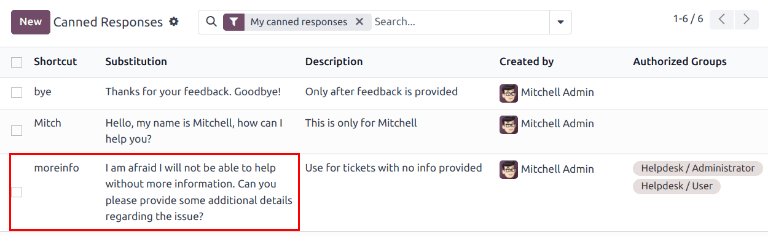
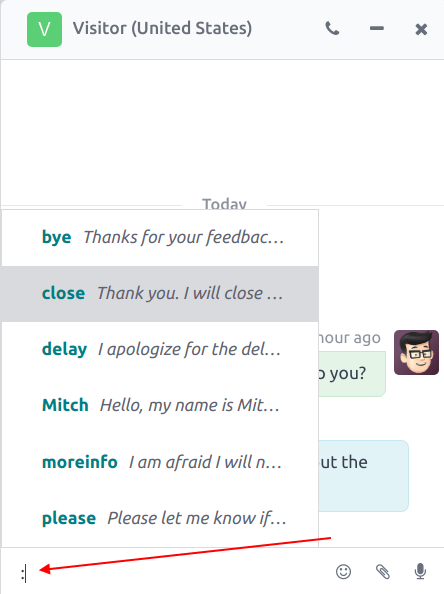
To use a canned response: Type : (colon) in a composer or chat window, followed by the shortcut. Press Enter. The shortcut is replaced by the full substitution. The response can still be edited before sending.
Tip:
- Typing
:on its own generates a drop-down list of all available canned responses. Select from the list or continue typing the shortcut to filter results.- Type
:followed by the first few letters of a shortcut to search through available responses.
Quick Reference
| Task | How to do it |
|---|---|
| Open Discuss | Top navigation → Discuss menu, or Alt + D |
| View unread messages | Discuss app → 📥 Inbox |
| View starred messages | Discuss app → ⭐ Starred |
| View record activity history | Discuss app → 🕐 History |
| Start a direct message | Discuss app → + next to Direct Messages |
| Start a group conversation | Direct Message search bar → add multiple names → Enter |
| Start a meeting (video call) | Discuss dashboard → Start a meeting, or open conversation → 📞 Start a Call |
| Change notification method | Settings → Manage Users → user → Preferences tab → Notification field |
| Create a channel | Discuss app → + next to Channels |
| Configure channel privacy | Channel → ⚙️ icon → Privacy tab |
| Invite members to a channel | Channel → 👤+ icon → Invite to Channel |
| Browse all channels | ⚙️ icon next to CHANNELS heading |
| Link a channel in chatter | Type #channel-name in the chatter note |
| Set up Twilio ICE servers | Settings → General Settings → Discuss → Use Twilio ICE servers |
| Follow a record | Open record → Follow button (top right above chatter) |
| Add a follower to a record | 👤 (followers) icon → Add Followers |
| Log an internal note | Record chatter → Log note |
| Send a message from a record | Record chatter → Send message |
| Expand the message composer | Composer → ⤢ (expand) icon (bottom right) |
| Generate AI text for a message | Expanded composer → AI icon → enter prompt → Insert |
| Edit a sent message | Message → ⋮ menu → Edit → Ctrl + Enter to save |
| Search chatter thread | 🔍 (search) icon above chatter → enter keyword → Jump to result |
| Schedule an activity | Record chatter → Activities button |
| Mark activity as done | Activity entry in chatter → Mark Done |
| Attach a file to chatter | 📎 (paperclip) icon in chatter composer, or drag and drop |
| Translate a chatter message | Message → ⋮ menu → Translate |
| Create a canned response | Discuss → Configuration → Canned Responses → New |
| Use a canned response | Type : + shortcut → Enter |
| View all available canned responses | Type : in any composer or chat window |
Tips & Best Practices
Message Center
Message Center is a centralised view within the Discuss module for tracking all patient communications — SMS, WhatsApp, and email — in one place. It provides a complete two-way communication log with timestamps, delivery status, and direct links to patient records.
Accessing Message Center
- Click Discuss in the main navigation bar.
- In the left sidebar (below Channels), click Messages.
- All sent and received patient messages appear in the main view.
Default View Settings
When Message Center opens, it defaults to:
| Setting | Default | Description |
|---|---|---|
| Time Filter | Today | Shows only today's messages |
| Grouping | By Recipient | Messages grouped by patient or guardian name |
| Sort Order | Newest First | Latest messages appear at the top |
Message List Columns
| Column | Description |
|---|---|
| Date/Time | When the message was sent or received (YYYY-MM-DD HH:MM) |
| Recipient | Patient or guardian name — shown as "John Doe (Patient)" or "Jane Doe (Guardian)" |
| Type | Communication channel — SMS, WhatsApp, or Email |
| Direction | Sent or Received |
| Message | First 100 characters of the message content |
| Sent By | Staff member who sent the message |
| Status | Sent / Delivered / Failed / Received |
Filters and Grouping
Time filters — Today, This Week, This Month
Direction filters — Received, Sent
Message type filters — SMS, WhatsApp, Email
Recipient type filters — Patient, Guardian
Group By options:
- Recipient (default) — Group by patient or guardian name
- Patient — Group by patient only
- Type — Group by SMS / WhatsApp / Email
- Direction — Group by Sent / Received
- Date — Group by day, week, or month
- Sent By — Group by staff member who sent the message
Actions
View message details — Click any message row to see the full content, date and time, phone number, and delivery status.
Open patient record — Click the Open Patient button to open the patient form in a pop-up. For guardian messages, this opens the guardian record and links through to the associated patient.
Reply to a message — Click the Reply button. The reply method automatically matches the original message type:
- SMS → Opens the SMS composer
- WhatsApp → Opens the WhatsApp composer
- Email → Opens the email composer (only available when Message Type = Email)
Replies are automatically logged in the patient's chatter and tracked in Message Center.
Search — Use the search bar to find messages by patient name, phone number, or message content.
Email Reply
Email replies are only available for messages where the Message Type is Email.
- Open any message record with Message Type set to Email.
- Click the Reply button.
- The email composer opens with the recipient pre-filled and the message linked to the patient record.
- Compose your reply and click Send. The reply is logged in the patient's chatter automatically.
Common Scenarios
Patient sends a WhatsApp message The message appears in Message Center automatically with Direction = Received. The patient's last WhatsApp received timestamp is updated and a 24-hour custom message window opens. Click Reply to send a custom message — no template required within the 24-hour window.
Send an appointment reminder Search for the patient in Message Center. Check the last communication method used. Click Reply — the composer auto-selects the matching method. Compose the reminder and send. The message is logged automatically.
Guardian inquiry via SMS The guardian's SMS appears with the label "(Guardian)". Filter by Guardian to isolate these messages. Click Open Patient to see which patient is linked. Click Reply — the SMS composer opens pre-filled with the guardian's number. The response is tracked separately from patient messages.
Review a patient's full communication history Set Group By to Patient and apply the This Month filter. Expand the patient's record to see all messages across all channels in a single timeline.
Tips & Best Practices
Discuss
Inbox vs History: Use Inbox for messages requiring action or response. Use History to review what has happened on records you are involved in without messages being directed at you.
Group conversations: Use group direct messages for quick multi-person discussions that don't need a permanent channel. If the topic becomes recurring or involves more people, create a dedicated channel instead.
User status: Check a colleague's status (green/orange/white) before expecting an immediate reply. Avoid pinging unavailable users with urgent requests — schedule an activity or send an email instead.
Channel structure: Keep channels focused on a single topic or team. Avoid creating channels for one-off discussions — use direct messages for those. Archive channels that are no longer active to keep the sidebar clean.
Auto Subscribe Groups: Use Auto Subscribe Groups in channel settings to automatically add all members of a team or department to the relevant channels when they join. This eliminates the manual step of adding new starters to channels.
Linking channels in chatter: When a customer record discussion is relevant to a team channel (e.g., a complex support case being discussed in #support), link the channel in the chatter. This keeps both the record and the team channel connected without duplicating information.
ICE servers (Twilio): If video calls frequently fail to connect for remote workers, especially those working from home or on corporate VPNs, setting up Twilio ICE servers is the fix. Symmetric NAT — common in corporate and home router setups — blocks direct peer-to-peer connections.
Followers and recipients: Always check who is following a record before sending a chatter message. Followers receive every message by default. If a message is only relevant to one person, consider sending it via direct message instead, or remove unneeded followers first.
Canned responses — naming conventions: Use consistent, intuitive shortcuts across the team. Prefix shortcuts by category if you have many (e.g., appt-confirm , appt-reminder , rx-ready , greeting-new ). Document shortcuts in the Description field so anyone can understand when to use each response.
Canned responses — authorized groups: Always assign canned responses to an authorized group before distributing them to the team. Responses without a group assignment are invisible to everyone except the creator, which causes confusion when a colleague cannot find a response they have been told to use.
Activities: Use activities to assign and track follow-up tasks directly on records rather than keeping a separate to-do list. The color-coded system (red/yellow/green) makes it immediately obvious which tasks are overdue when reviewing a list or Kanban view.
AI text generation: Use the AI text generator for drafting formal or lengthy messages (e.g., escalation notices, follow-up emails) where you know what to say but want a well-structured starting draft. Always review the output before sending — AI-generated content may include placeholder text in brackets or statements that need to be verified.
Message Center
Start of day routine: Apply the Today filter when opening Message Center each morning to quickly see all overnight and early messages before beginning outreach.
Avoid duplicate messages: Check the message history and timestamps for a patient before sending a reminder or follow-up. Message Center makes it easy to see if a colleague has already contacted them.
Monitor failed messages: Regularly check for messages with a Failed status and resend or follow up by an alternative method. Failed SMS or WhatsApp messages can mean a patient missed an important appointment reminder.
Use Reply, not a new message: Always use the Reply button from Message Center rather than composing a new message from elsewhere. This keeps the full conversation thread linked to the patient record and ensures the reply is logged correctly.
Guardian vs patient tracking: When filtering or grouping, be aware that guardian messages are tracked separately. Use the Recipient group-by (default) to see both patient and guardian messages together, or filter by Guardian to focus on guardian-only communications.
Audit and compliance: Every message in Message Center is logged with a timestamp and the name of the staff member who sent it. This provides a complete audit trail accessible through both Message Center and the patient's chatter record.