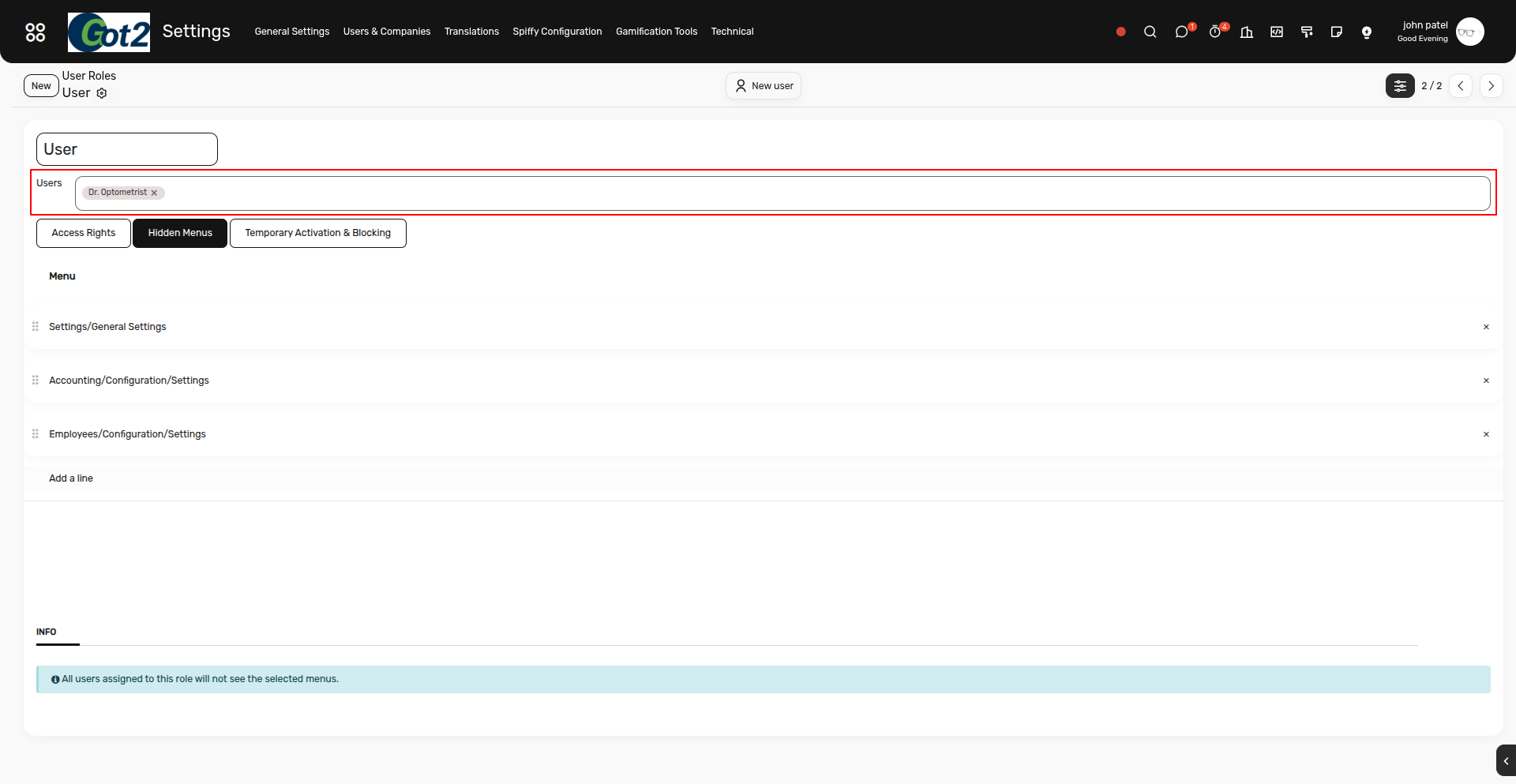
Hide Menu Based on User Roles
If a menu name is added to the User Role configuration (as a restricted or hidden menu), that menu will not be displayed to users assigned to that role. All users under that specific role will be unable to view or access the restricted menu in the system navigation
Steps to Hide a Specific Menu for a Specific Role
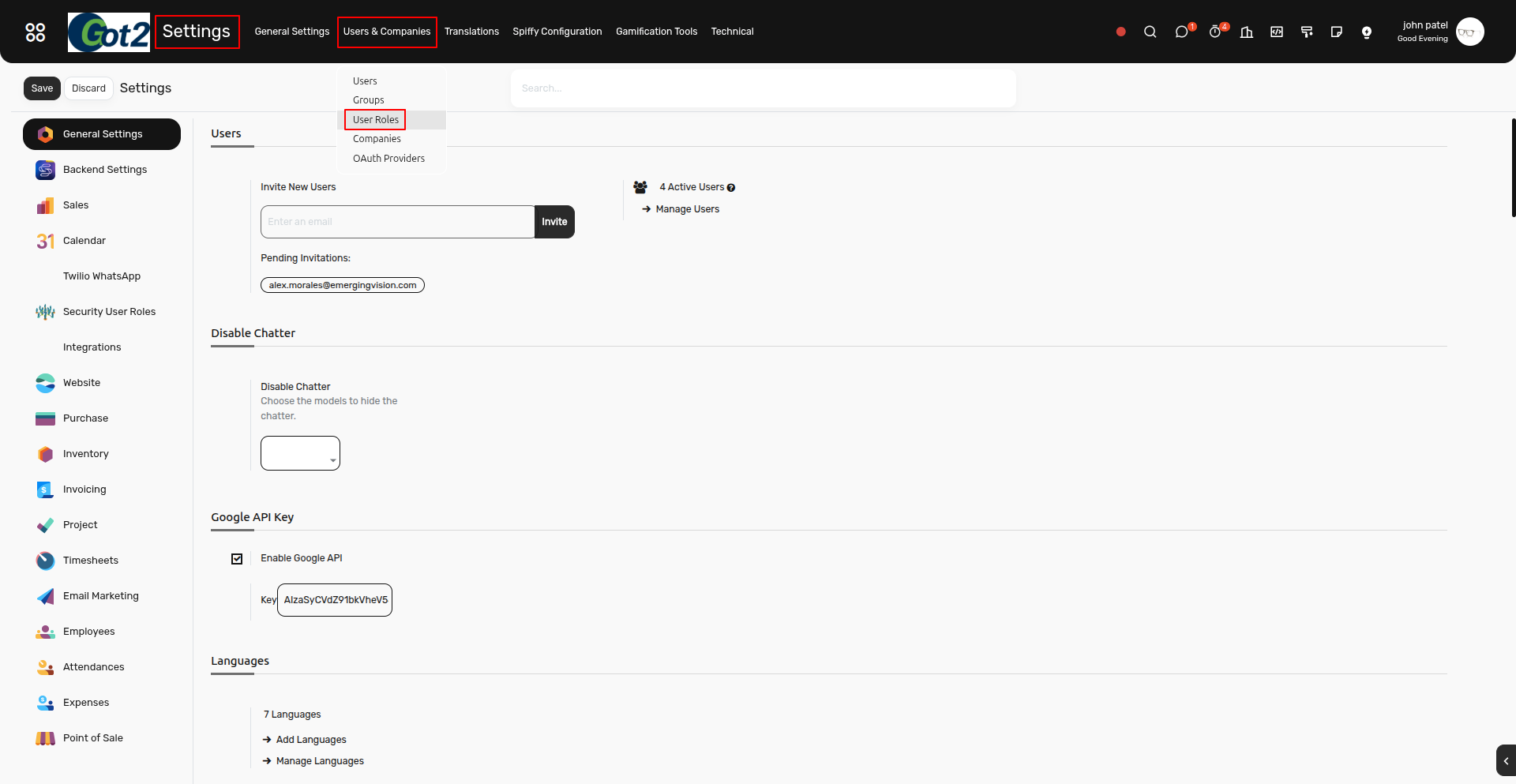
1) To hide a specific menu for a particular role, navigate to:
- Settings > Users & Companies > User Roles
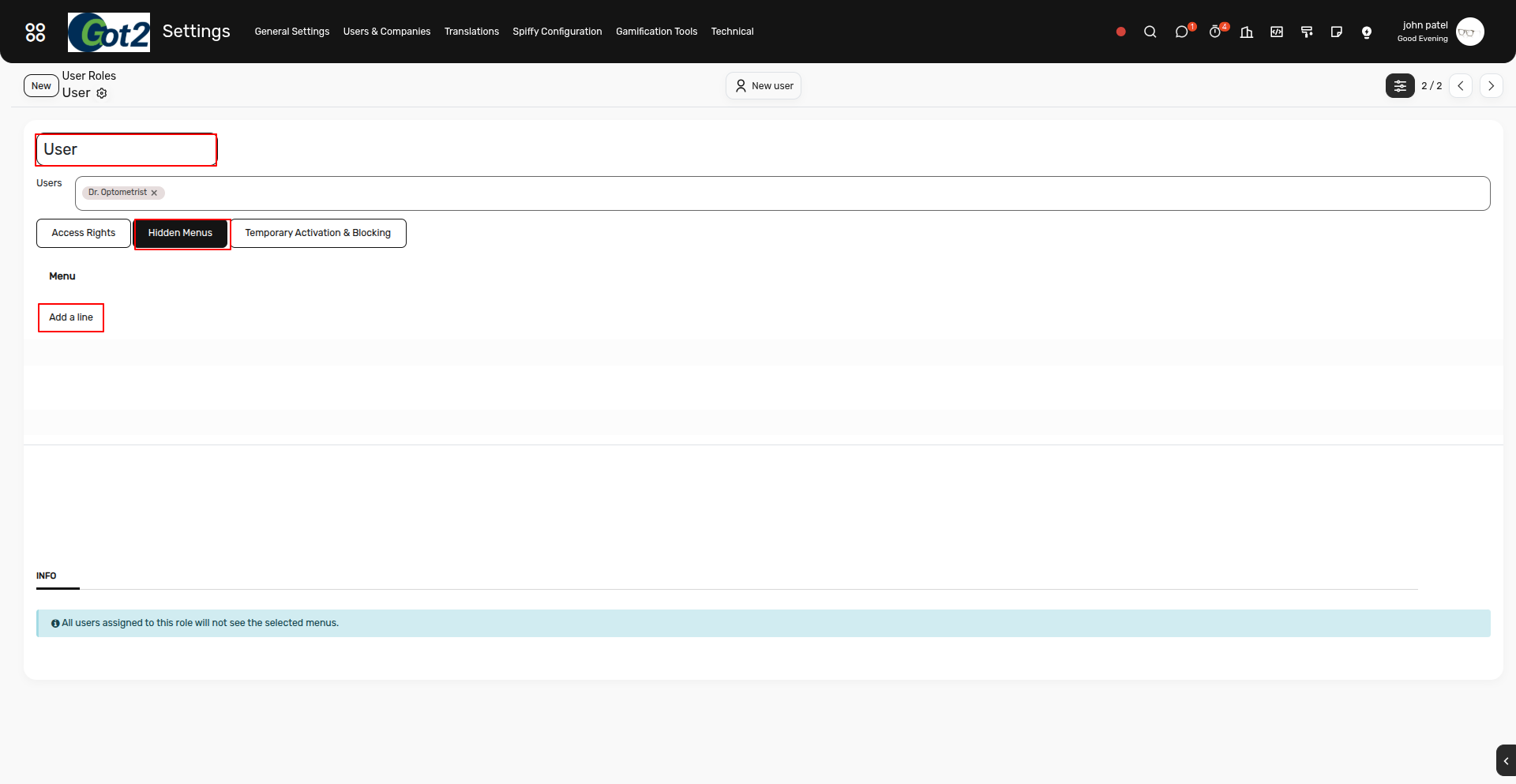
2) Open the specific user role for which you want to hide a particular menu. Inside that role, navigate to the Hidden Menu tab and click on the Add a Line button to select the specific menu name you want to hide.
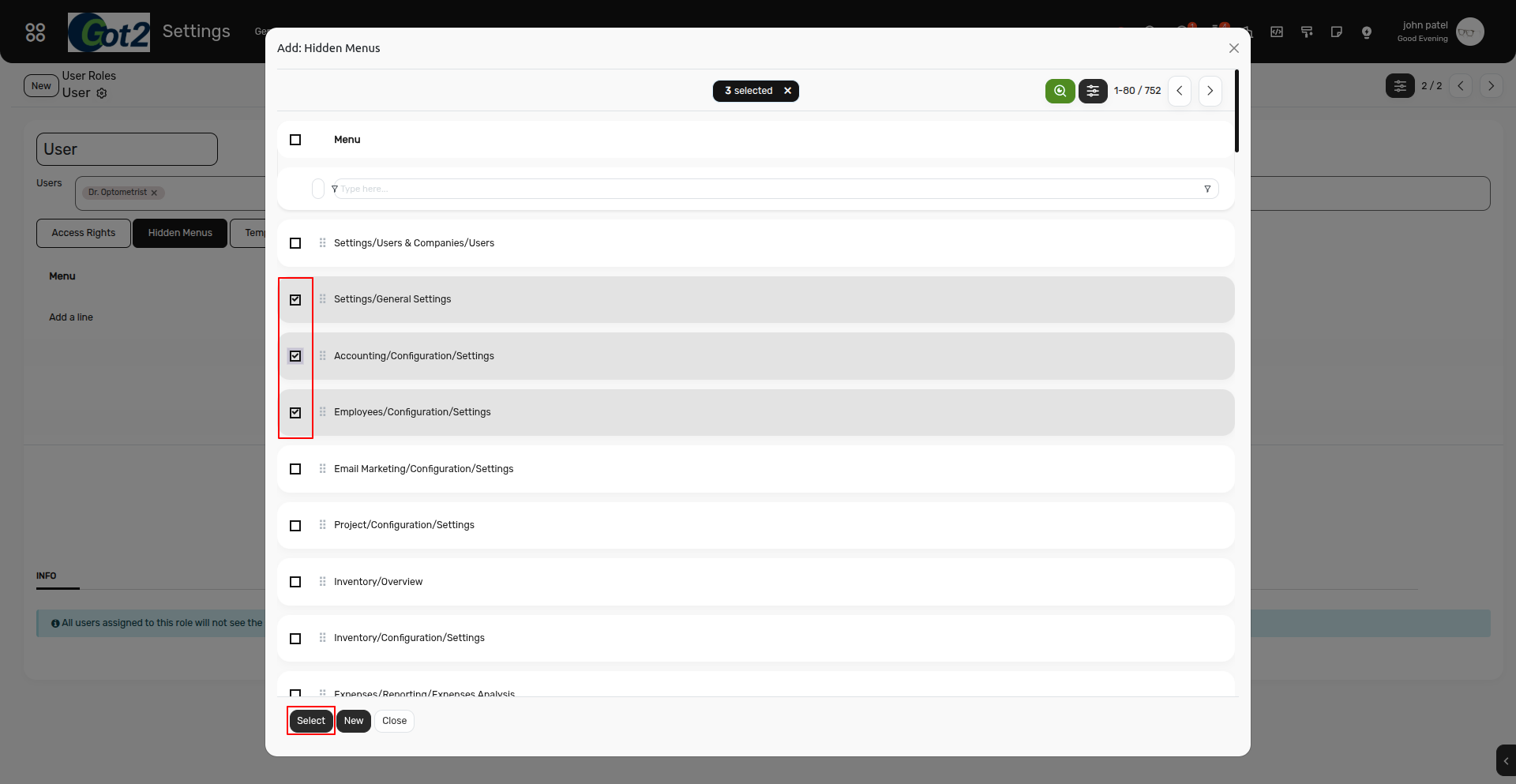
3) Select the menu name you want to hide for that user role and click the Select button.
(You can also select multiple menus here if needed.)
4) After that, all the selected menus will be added to the list. Finally, click Save to save the main record.
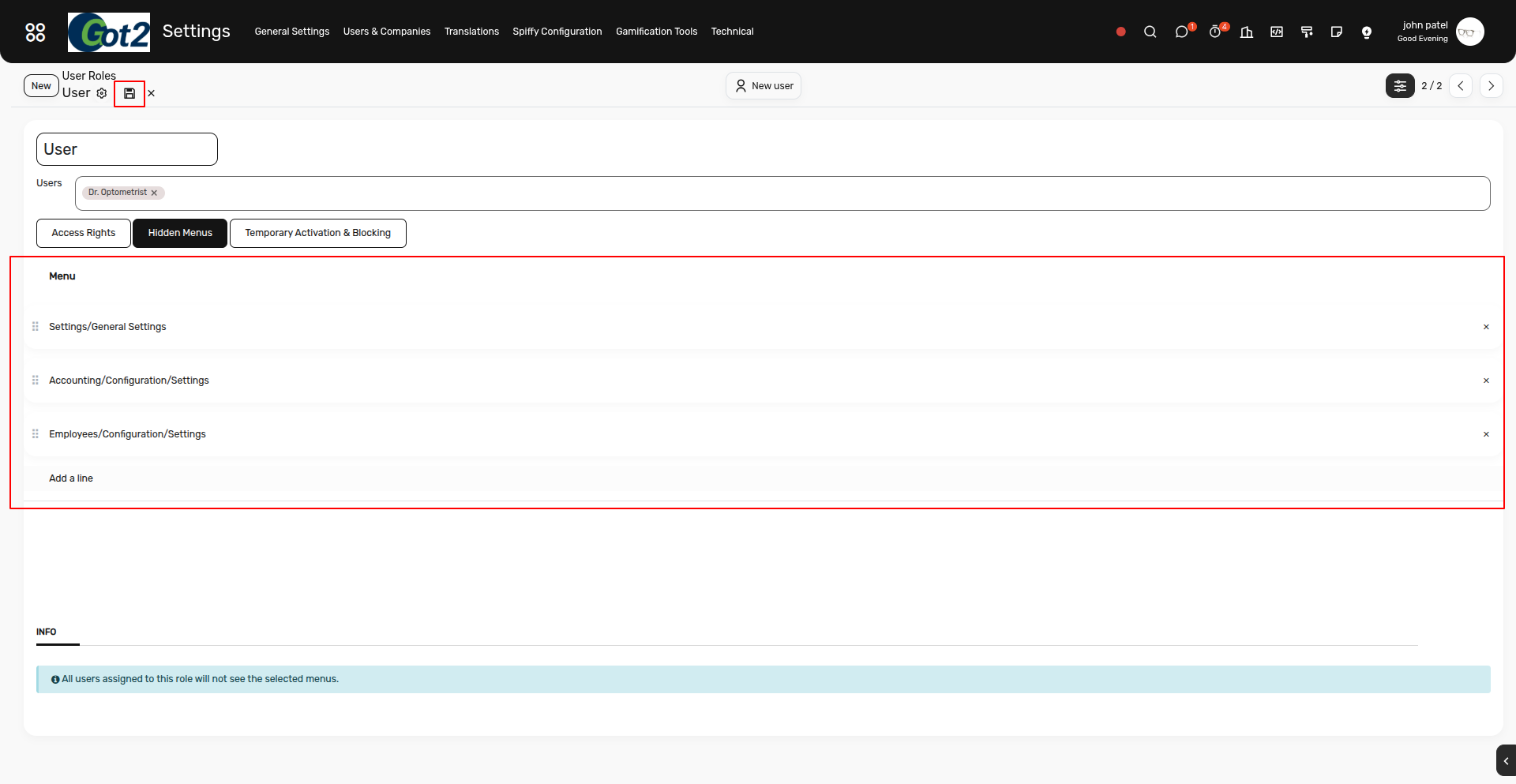
5) After saving, the particular menu will no longer be visible to all users assigned to this role.